

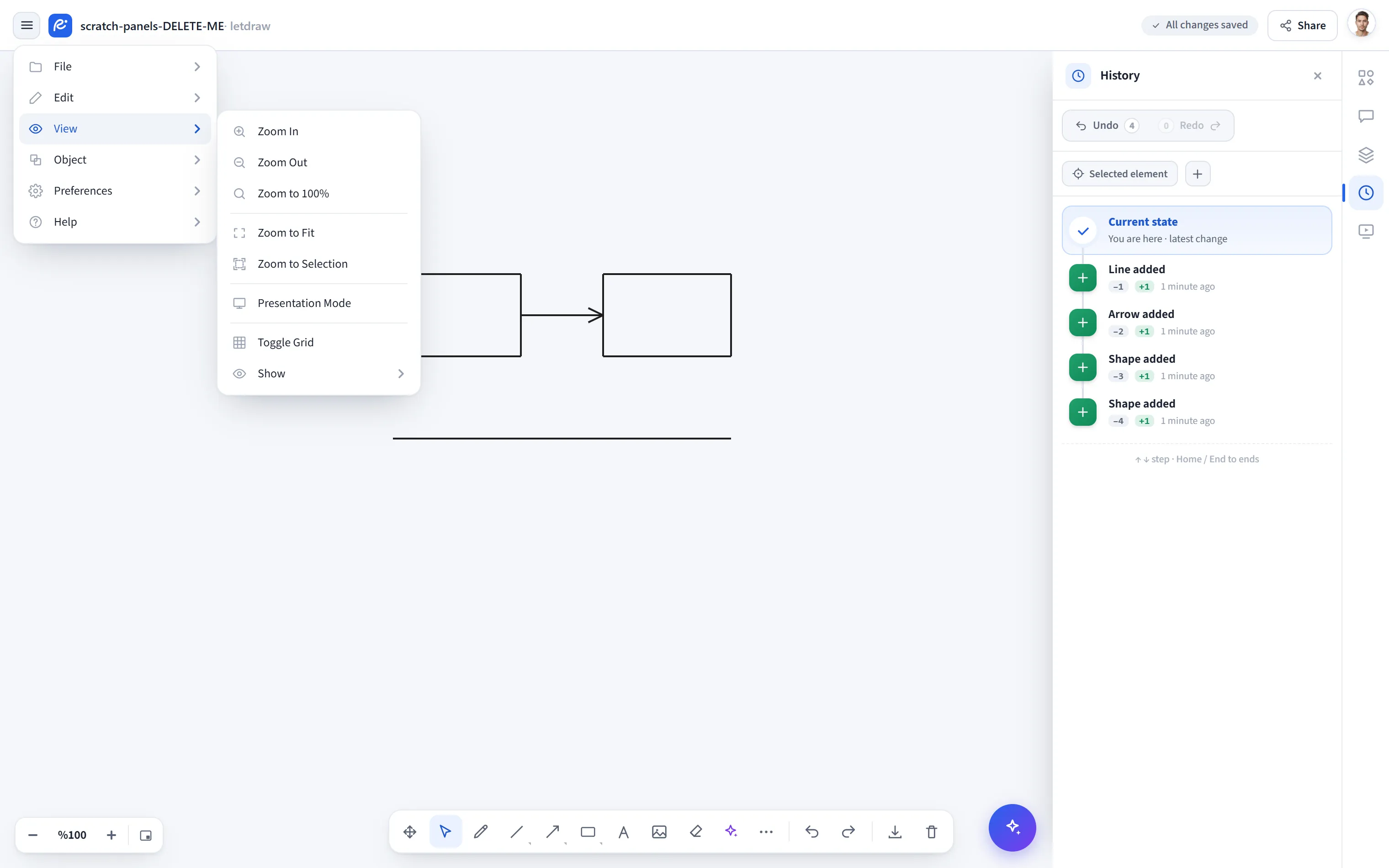
View
The hamburger menu at the top left → View controls how you look at the
canvas: the camera (zoom), the grid, presentation mode, and which interface parts
are visible. Nothing here changes the document; it only affects the view. So
every item stays available while View Mode is on, and none of them adds a step to
the undo history (camera moves aren’t reversed by Ctrl+Z).
Zoom In / Zoom Out
Section titled “Zoom In / Zoom Out”Zooms the canvas in or out by one step. Zoom snaps to fixed steps (10%, 25%, 50%, 75%, 100%, 125%, 150%, 200%, 250%, 300%, 400%, 600%, 800%), so you don’t drift to an in-between value like “87%”. The lower bound is 10%, the upper 800%. When the step changes, the centre of the view stays fixed.
For smoother zooming, hold Ctrl (or Cmd) and turn the mouse wheel; this zooms
continuously while keeping the point under the cursor fixed. Turning the wheel
without Ctrl pans the canvas.
Zoom to 100%
Section titled “Zoom to 100%”Sets the zoom to 1× (actual size), keeping the centre of the view.
Zoom to Fit
Section titled “Zoom to Fit”Zooms so the whole drawing fits on screen, with a little padding around the edges. Deleted elements (hidden by a collaborator) don’t count, so it won’t gather around invisible content. It does nothing when the canvas is empty.
Zoom to Selection
Section titled “Zoom to Selection”Fits just the selected elements to the screen. It does nothing when nothing is selected.
Presentation Mode
Section titled “Presentation Mode”(Pro) Turns the canvas into a full-screen slideshow: frames become slides and you step through them with the arrow keys. See Presentation mode for the details. On the free plan this item opens an upgrade dialog.
Toggle Grid
Section titled “Toggle Grid”Turns the background alignment grid on or off. The setting is remembered across sessions.
Opens a submenu where you turn interface parts on and off one by one. These preferences are remembered across sessions and are not part of the document (they aren’t shared with a file, and aren’t undoable).
- Shape Properties: the format (selection) toolbar that appears above an element when you select it.
- File name: the document name in the top bar.
- Drawing hint: the helper hints that appear while a tool is armed (for example the guidance shown while drawing a multi-point arrow).
- Zoom bar: the zoom controls in the corner.
- AI Assistant: the AI assistant button at the bottom right (shown on eligible plans).
- Right dock: the panel rail on the right edge. Turning it off also closes any panel that is open.
- Comments on canvas: the comment pins shown directly on the canvas.
The same submenu holds the panel toggles: Shapes panel, Comments panel, Layers panel and History panel. These open in the right dock, and only one is open at a time: opening one closes the others. Clicking the panel that is already open closes it.