

Math / LaTeX
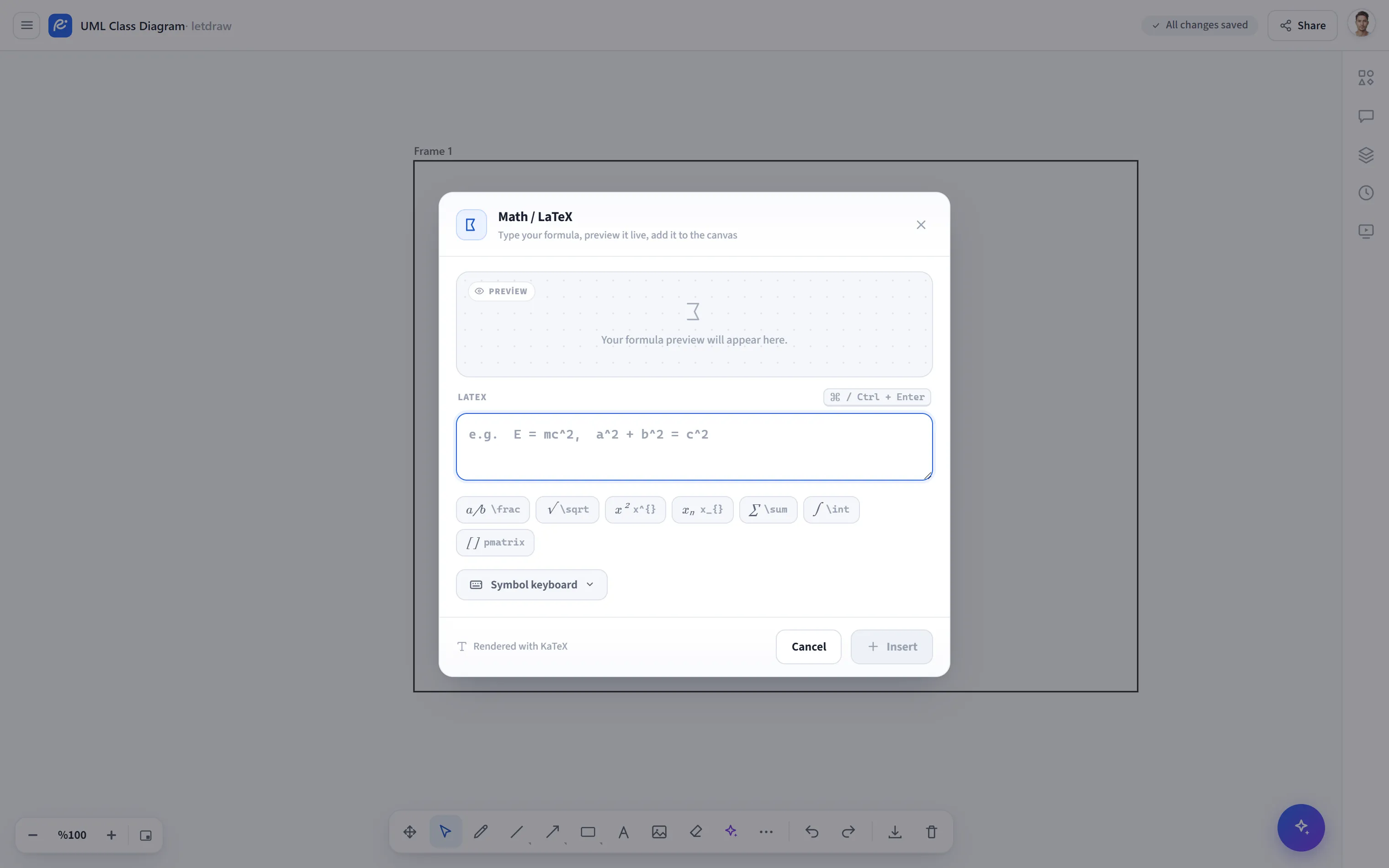
Math / LaTeX adds math formulas rendered with KaTeX to the canvas. You write the formula in a dialog with a live preview; it appears on the canvas as a crisp, scalable element.
How to open
Section titled “How to open”In the bottom toolbar, More tools (⋯) → Math / LaTeX.
How to use
Section titled “How to use”- Open More tools → Math / LaTeX.
- Type LaTeX into the box at the bottom; e.g.
E = mc^2or\int_0^\infty e^{-x}\,dx = 1. The preview at the top updates instantly; if there is an error, an “Invalid LaTeX” warning appears. - Click Insert to place the formula on the canvas (or
Ctrl/⌘ + Enter). You can edit it later by double-clicking the formula (in which case the button becomes Save).
Templates and symbol keyboard
Section titled “Templates and symbol keyboard”- Quick templates: ready-made patterns inserted with a single click sit above
the box: fraction (
\frac), square root (\sqrt), exponent (x²), subscript (xₙ), sum (\sum), integral (\int), and matrix. The cursor is placed at the right spot so you can keep typing. - Symbol keyboard: off by default; you open it with Symbol keyboard. You can switch between the All / Math / Arrow / Letter categories, and clicking a symbol inserts the corresponding LaTeX at your cursor.
- You can copy the LaTeX with the copy button in the preview.
- The syntax is KaTeX; most common commands (fraction, integral, sum, matrix, Greek letters) are supported.
- A math element is shown on the canvas as an HTML layer; for that reason it is not included in PNG/SVG/PDF image exports (it appears on the canvas and in shared sessions). If it needs to remain in a presentation, you can also capture it as a screenshot.