

Insert table
Insert table adds a grid of editable cells to the canvas. The table moves and is grouped as a single unit; you double-click any cell and type text.
How to open
Section titled “How to open”In the bottom toolbar, More tools (⋯) → Insert table.
How to use
Section titled “How to use”- Open More tools → Insert table.
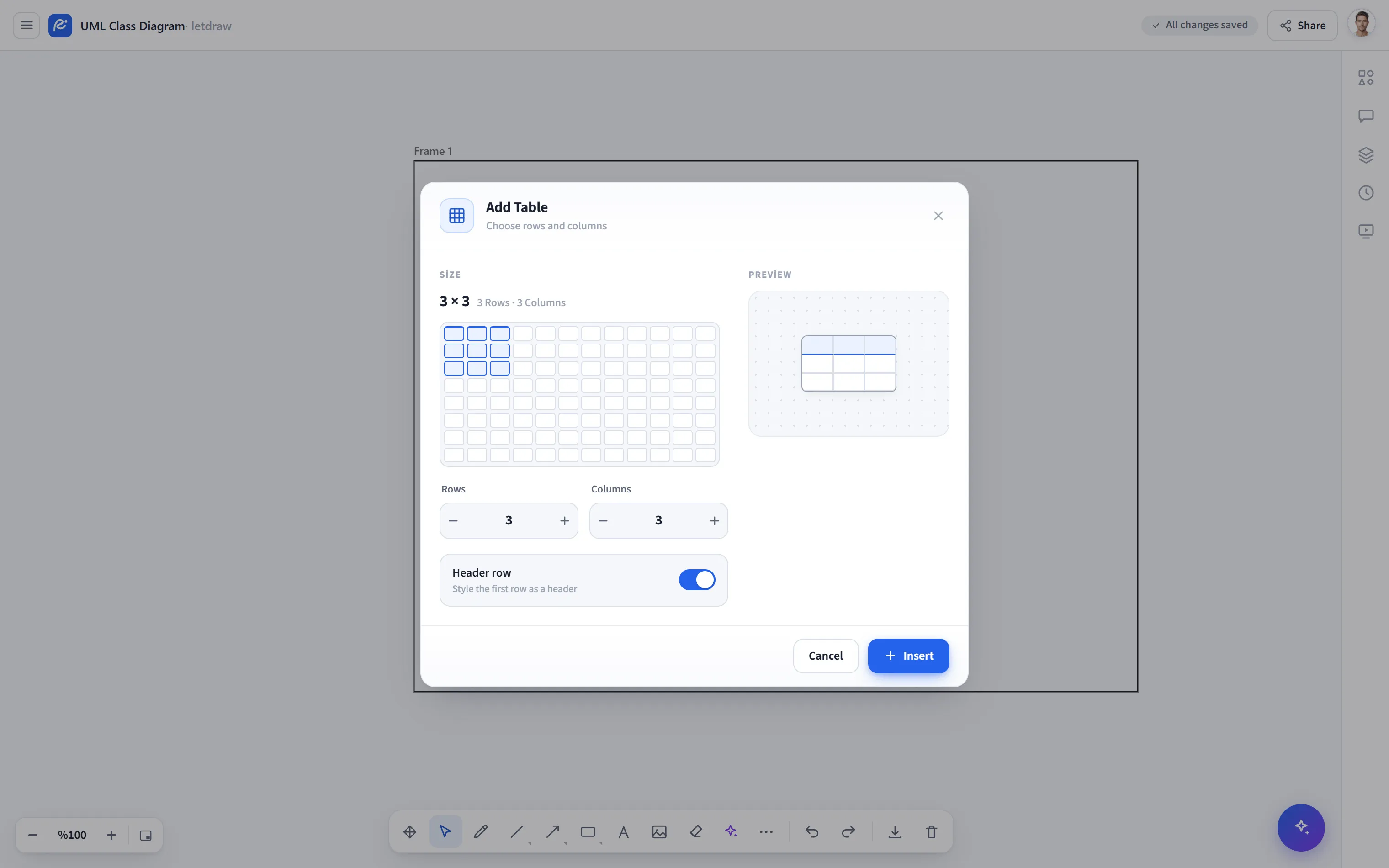
- Choose the size in one of two ways:
- Grid picker: hover over the Word/Docs-style grid with the mouse and click; the size you select reads as “n × m” at the top.
- Counters: for larger sizes, enter the number of Rows and Columns with the +/− counters or by typing directly (up to 20 rows × 12 columns).
- If you like, turn on the Header row toggle; the first row stands out visually.
- See the final state of the table in the preview on the right and place it on the canvas with Insert.
- Double-click a cell to type text. Empty cells are clickable too, because each cell is an opaque white rectangle.
- Because the whole table is grouped, it moves and scales together; editing a single cell does not affect the others.
- Because the table is made of real shapes, it is included in PNG/SVG/PDF exports.