

Teams
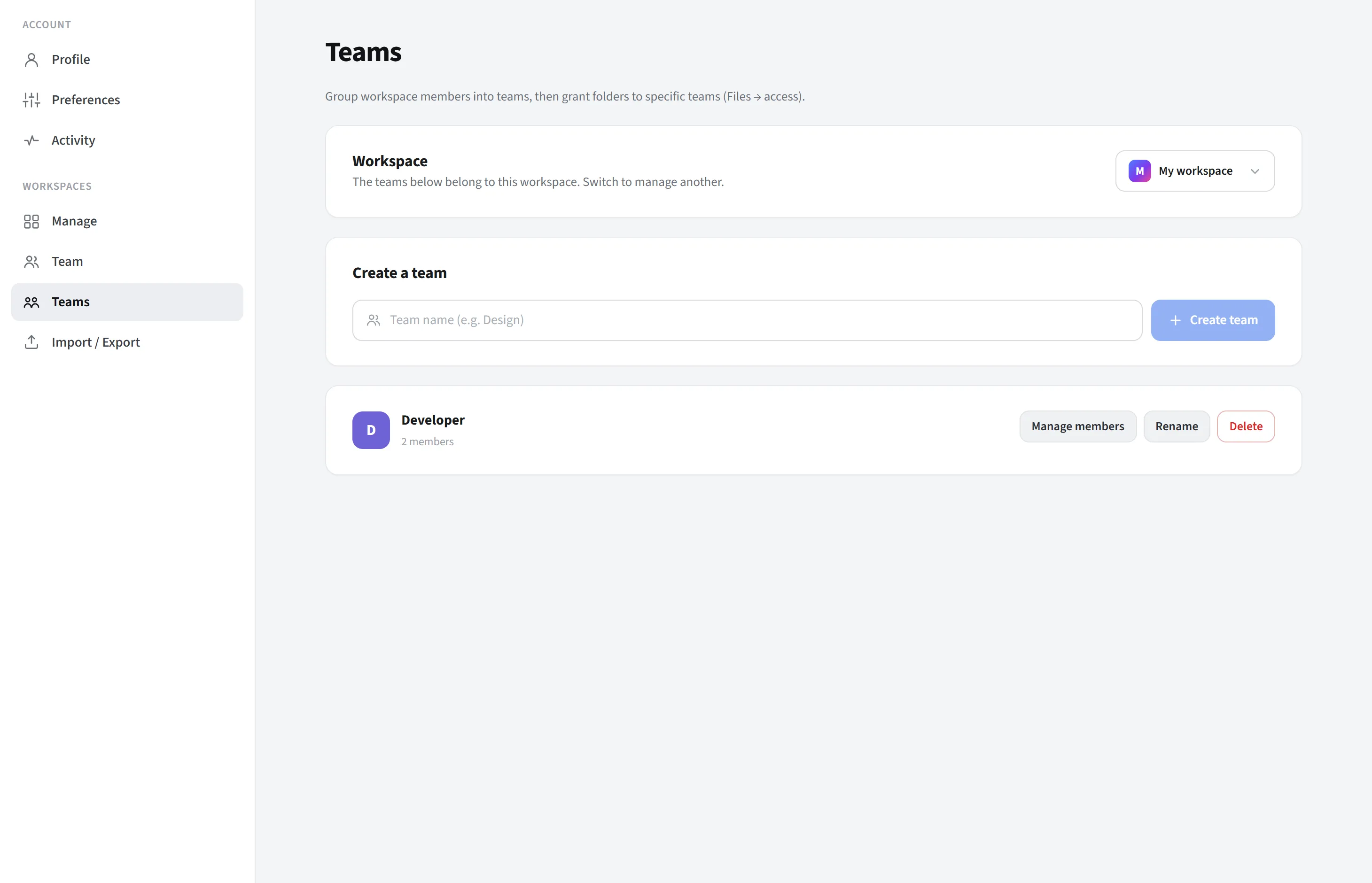
Teams lives in the Workspaces group of the settings page. A team is a named sub-group of members within the active workspace (for example “Design”, “Marketing”, “Management”). The main purpose of teams is to open a folder to a group rather than to individual people.
What it does and why it exists
Section titled “What it does and why it exists”Teams let you manage access group by group rather than person by person. The benefits:
- Grant folder access to a group: in the folder access setting under My Files, you scope a folder to “Specific teams”; only the members of the teams you select (and the workspace owner) can see that folder. This way you open sensitive or department-specific content only to the relevant team.
- Reusable and consistent: you can select the same team as the target for many folders. As the team changes, instead of fixing access in each folder one by one, you add or remove the person from the relevant team; access across all folders linked to that team updates automatically.
- Scales: even with dozens of people and folders, access stays manageable with a few meaningful groups; you don’t have to open folders one by one for each new joiner.
In short, teams are for managing the question “who can see what” in an organized, sustainable way.
Teams vs. roles
Section titled “Teams vs. roles”These are two separate concepts that complement each other:
- Role (owner / editor / viewer) determines what a person can do: view only, or edit.
- A team determines which folders a person can see.
The two work together. For example, an editor has edit rights but can only see and edit folders opened to teams they belong to (or that are open to everyone); they cannot access a folder hidden from them.
How to open it
Section titled “How to open it”Top right avatar → Account settings (Settings) → in the left menu Workspaces → Teams.
Workspace scope
Section titled “Workspace scope”Teams are workspace-specific; the teams listed belong to the currently selected workspace. Using the workspace switcher at the top of the page, you can switch to another workspace and manage its teams. In your personal My Workspace (since it is single-person) teams are generally not needed.
What you can do
Section titled “What you can do”Team management is available only to the owner (see the Who manages section below):
- Create team: type a name (e.g. “Design”) and press Create team.
- Rename: change the name of an existing team.
- Delete: delete a team. Important: deleting a team also removes the folder access granted to that team (those folders will then be visible only according to their own scope).
- Add / remove members: open a team with Manage members; check the boxes next to workspace members to add or remove them from the team. A person can be in multiple teams at once.
Who manages
Section titled “Who manages”- Owner: creates, names, deletes teams and edits their members.
- Editor / Viewer: can see teams and their members but cannot change them. A non-owner sees the note “Only the workspace owner can create and manage teams; you have view-only access to this workspace” on this page.
Using teams for folder access
Section titled “Using teams for folder access”- On this page, create a team and add its members.
- In My Files, click the access (lock) button of a top-level folder.
- Set the scope to “Specific teams” and select the teams you want to open the folder to.
Details: My Files → Setting folder access.