

Add a comment
A comment is a repliable note attached to a document or to a specific shape or point. Use it to give feedback, mark a spot and say “fix this here”, and discuss the same document with your team. Comments sync in real time; your teammates see them instantly.
Where to add from
Section titled “Where to add from”You can start a comment from several places:
- On any point of the canvas: in the bottom toolbar, choose More tools (⋯) → Add comment, then click wherever you want on the canvas. A comment pin is placed at that point and the composer popup opens.
- On a shape: select a shape and press the Comment button in the selection bar; the comment attaches to that element (it stays attached even if you move the shape).
- At the document level: leave a general comment (with no anchor) from the composer in the right-hand Comment panel.
- By clicking an existing pin: clicking a comment pin on the canvas opens that element’s comment thread as a popup.
Who can add one
Section titled “Who can add one”To leave a comment you must be signed in and working on a cloud (saved) document. In guest use or on a local draft this feature is disabled (the tool item is grayed out; the panel shows a “sign in” or “open a document” prompt).
Limits and quotas
Section titled “Limits and quotas”- Free plan: you can open 5 top-level threads per document. Replies do not count toward this limit (the limit applies to starting new conversations). When you try to open the 6th thread, an upgrade dialog appears.
- Pro / Enterprise: unlimited comment threads.
- Your remaining quota (“{used} / {limit} free threads”) is shown in the composer.
Comment popup (on canvas)
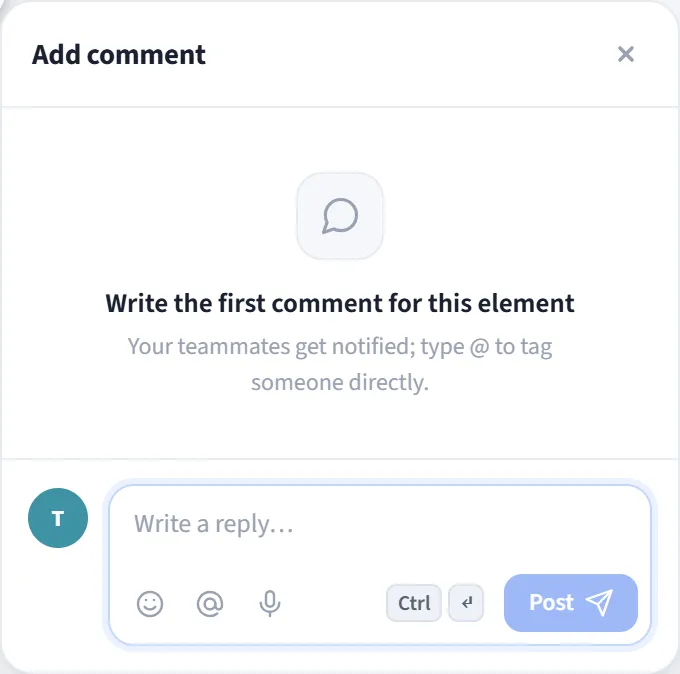
Section titled “Comment popup (on canvas)”When you click a pin or leave a new comment, a popup opens next to the
pin. It is positioned so it stays on screen, and it closes when you click outside it
or press Esc.
Top bar
- Title: Add comment when there are no comments, otherwise Comments plus a count and a status badge (Open / Resolved).
- Resolve all: marks all open threads on this element as resolved.
- Copy link: copies a direct link to the document (to these comments) to the clipboard.
- Delete all: deletes all comments on this element (asks for confirmation).
First comment
When the element has no comments yet, a “Write the first comment for this element”
hint appears; it reminds you that you can tag someone directly with @.
Composer
- Tag with @: tag workspace members with autocomplete; the tagged person is notified.
- Add an emoji, or dictate with voice input (microphone).
- Publish with the Send button or
Ctrl/⌘ + Enter.
What you can do with a comment
Section titled “What you can do with a comment”Every comment has its own actions:
- Reply: create a reply thread under the topic.
- React: leave an emoji reaction.
- Resolve / Reopen: close a completed thread or open it again (resolved ones collapse).
- Pin: bring an important comment to the top.
- Edit / Delete: edit or remove your own comment (deleting a top-level comment also deletes its replies).
- Go to shape / Copy link: jump to the related shape or share a direct link to the comment.
Real time
Section titled “Real time”Comments appear instantly to team members in a shared document (across devices and tabs). Clicking a pin on the canvas scrolls to the matching thread in the right panel and highlights it.