

Help
The hamburger menu at the top left → Help holds quick-access and support links.
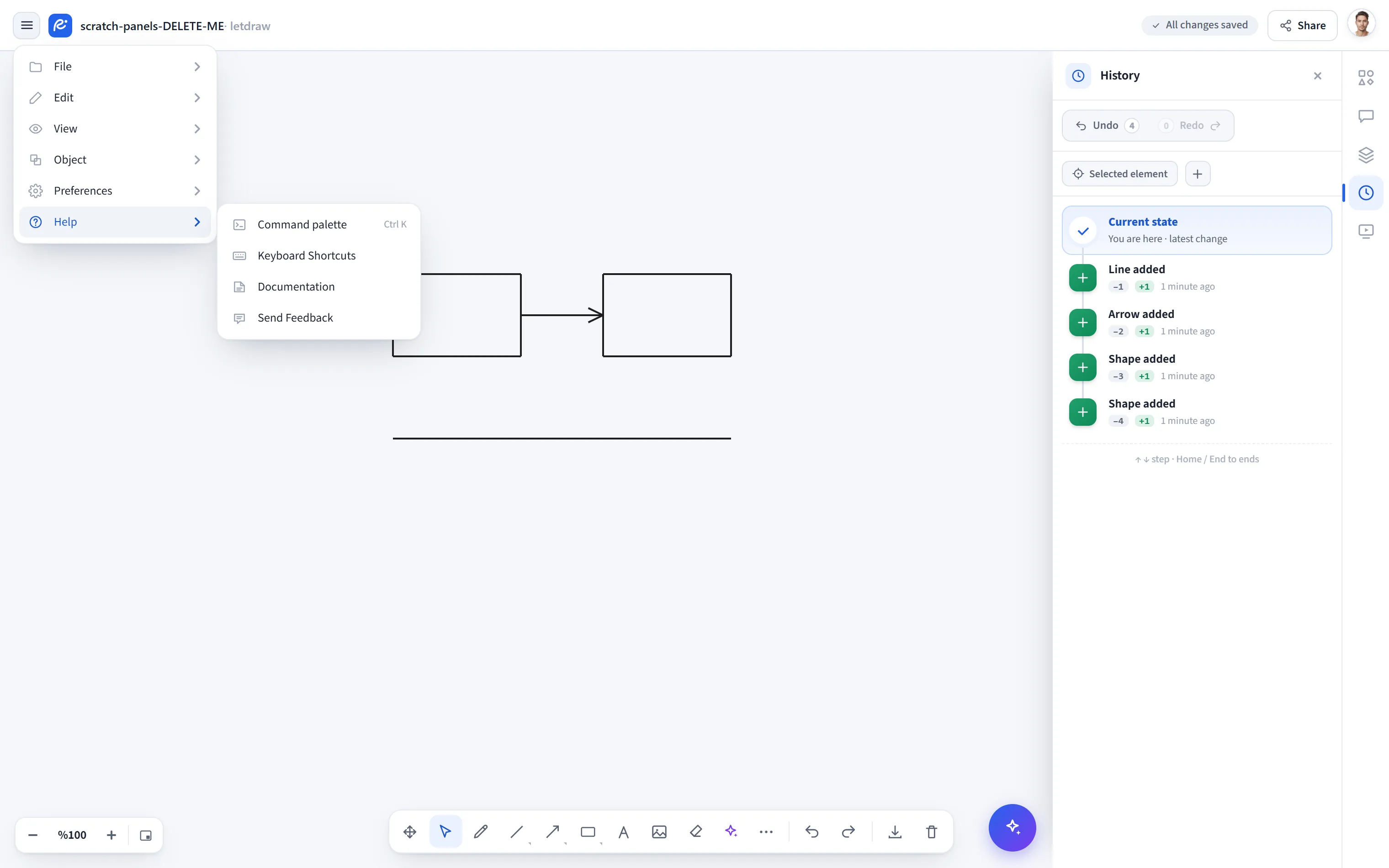
Command palette
Section titled “Command palette”Opens a searchable list of commands (Ctrl+K); find and run tools, actions, view
toggles and settings by name. It’s a single-window way in that stands in for
the menus and shortcuts; in View Mode the commands that change the document are
hidden here too.
Keyboard Shortcuts
Section titled “Keyboard Shortcuts”Opens a window that lists every keyboard shortcut, grouped: the single-letter tool
shortcuts (Select, Rectangle, Arrow, Pen, Text, Frame, etc.), editing (undo/redo,
cut/copy/paste, duplicate, delete), find (Ctrl+F, F3 / Shift+F3) and view
(zoom with Ctrl+wheel, pan with the wheel or middle-click). A search box at the top
filters shortcuts by name.
Documentation
Section titled “Documentation”Opens this documentation site (docs.letdraw.com) in a new tab. The link opens
safely, so the opened page can’t reach back into your editor (noopener).
Send Feedback
Section titled “Send Feedback”Opens the feedback / contact page (pro.letdraw.com/contact) in a new tab, the same safe way.
Sign in
Section titled “Sign in”When you’re signed out (and the backend is reachable), a Sign in item also appears at the bottom of the menu. On phones, where the account button in the top bar is hidden, this is the only way in to sign in; on desktop it’s a secondary, redundant path.