

Shapes panel
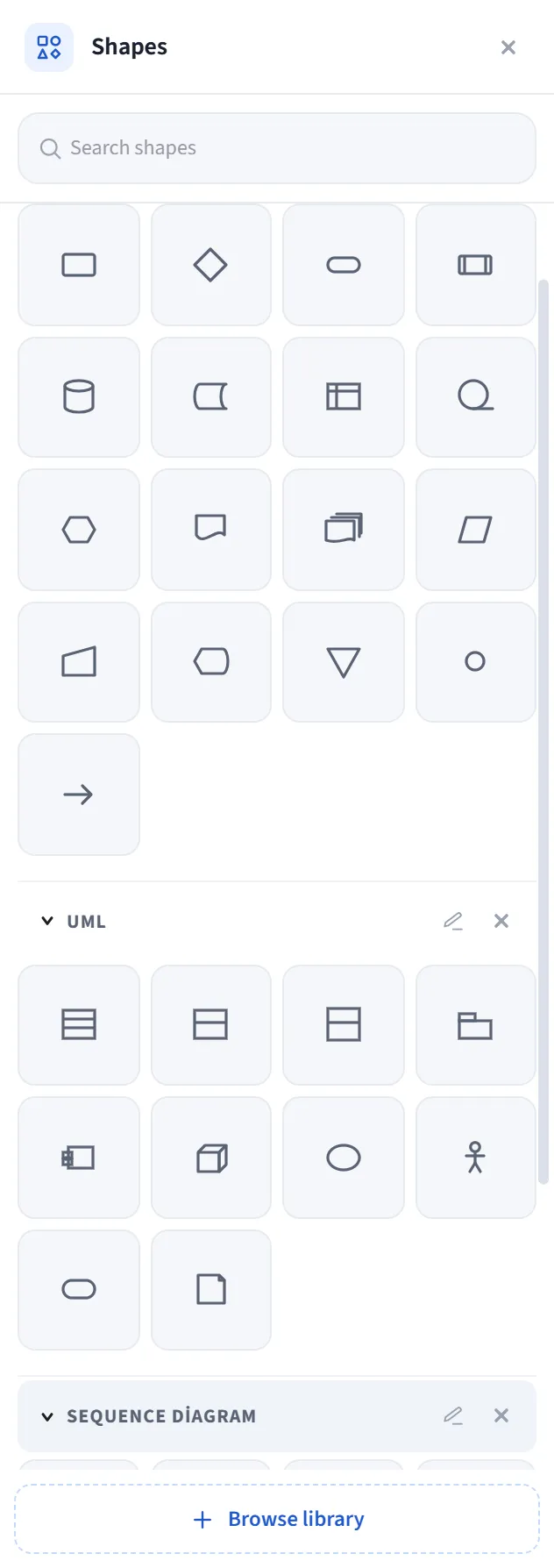
The Shapes panel is a catalog that opens on the right edge and holds ready-made shape sets and the libraries you’ve imported. You click a tile to add the shape to the canvas.
How to open it
Section titled “How to open it”- Open the Shapes panel from the panel bar on the right edge; or
- More tools (⋯) on the bottom toolbar → More shapes; or
- Main menu → View → Show → Shapes panel.
The header contains the panel name and a close button.
Search
Section titled “Search”The Search shapes box at the top filters shapes by their label and section
heading; Esc clears the search. During a search, matching sections open
automatically.
Sections
Section titled “Sections”The panel consists of collapsible sections:
- Ready-made sets: built-in sets such as Sequence Diagram, Flowchart, and UML. (Basic shapes have been moved to the Shapes dropdown in the toolbar.)
- Libraries you’ve imported: each
.letdrawlibappears as its own section.
In each section:
- Use the arrow in the heading to expand/collapse the section.
- Rename the section with the pencil icon (or by double-clicking the heading).
- Use × to hide the section (if it’s an imported library, this removes it).
- Drag section headings to change their order (persistent).
- Large libraries with many items are split into category sub-groups; categories start collapsed with their count and open on click (for speed in packages with hundreds of icons).
Using shapes
Section titled “Using shapes”- Clicking a tile either selects the tool (you drag the shape out onto the canvas) or adds a multi-element composition (such as an actor, class box, or lifeline) to the visible center of the canvas.
- Library tiles add their own elements to the canvas as-is.
Library management
Section titled “Library management”Imported library tiles have a checkbox. When you select tiles, an Actions menu (⋯ + selection count) appears in the search row:
- New library from selection: name your selection and package it as a new library of your own.
- Move selection to library: move your selection into a library you created.
- Save .letdrawlib: download your selection as a
.letdrawlibfile. - Delete: remove the selected tiles.
Placement and size
Section titled “Placement and size”- The panel’s position is set from Main menu → Preferences → Other settings: Right (docked to the edge, default) or Draggable (a free window you move anywhere by the handle at the top).
- If width resizing is enabled, you can change the panel’s width by dragging its left edge.
Adding and discovering libraries
Section titled “Adding and discovering libraries”- In the empty state (when all sections are hidden), the panel says “No shapes; click to
add” and lets you import a
.letdrawlib. - The Browse library button at the bottom opens the shapes.letdraw.com catalog in a new tab.
- To add a library from a file, see Add shape; for the catalog and the concept, see the Shape library pages.