

History
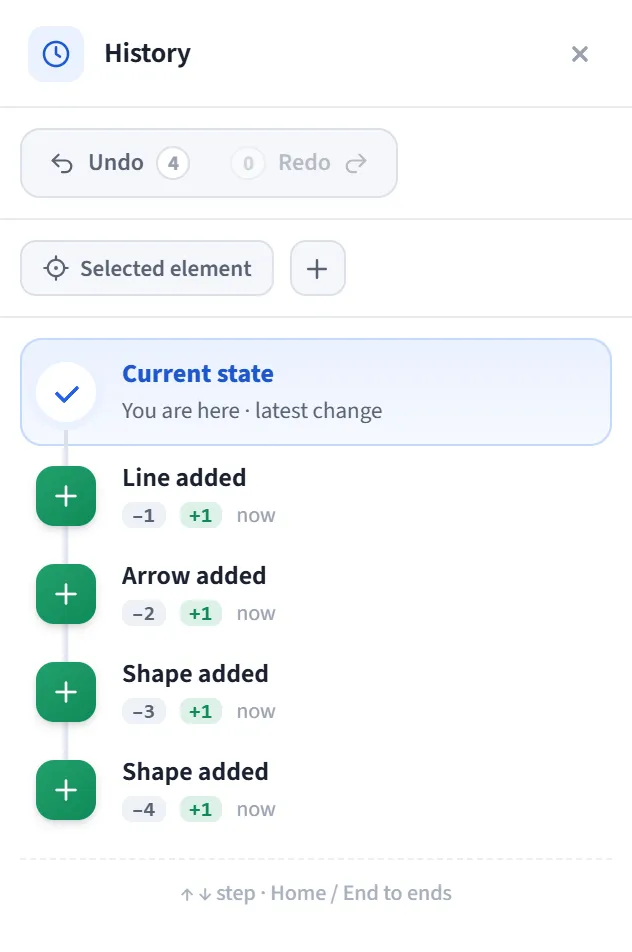
The History panel opens on the right edge and is a visual timeline that lets you jump to any state the canvas has been through. Each step shows what you did (add, delete, move, resize, style, text) with a colored icon; with one click you go back to that moment or forward again. It is the visible form of classic undo/redo.
How to open
Section titled “How to open”Open the History panel from the panel rail on the right edge.
Timeline
Section titled “Timeline”Steps are ordered as a single, continuous stream (top to bottom):
- Redoable steps (forward/redo) at the top,
- a highlighted “Current state · You are here” card in the middle,
- past steps (back/undo) below it.
Each step includes:
- An action icon (color coded): added, deleted, moved, resized, style changed, text edited.
- A short summary, a step badge (
+N/−N), the change in element count (+/−), and a relative time (“2 min ago”). - Clicking a step jumps to that state. Hovering over it highlights the elements that step affected on the canvas.
Action bar
Section titled “Action bar”At the top there are Undo and Redo buttons, with the number of remaining steps beside each.
Filtering and focus
Section titled “Filtering and focus”- Filter by change: chips that show only certain change types (add, move, style, etc.); “All” clears the filter. A chip appears only for types that actually occurred.
- Selected element (focus): when enabled, shows only steps that touch the selected element. If nothing is selected, a hint appears.
Keyboard
Section titled “Keyboard”While the panel is focused, navigate step by step with ↑ / ↓, and jump to the
ends with Home / End.
- If no edits have been made yet, the panel says “No history yet…”.
- Jumping to a step brings back that state; if you make a new edit from there, the forward (redoable) steps are replaced by the new history.