

Team
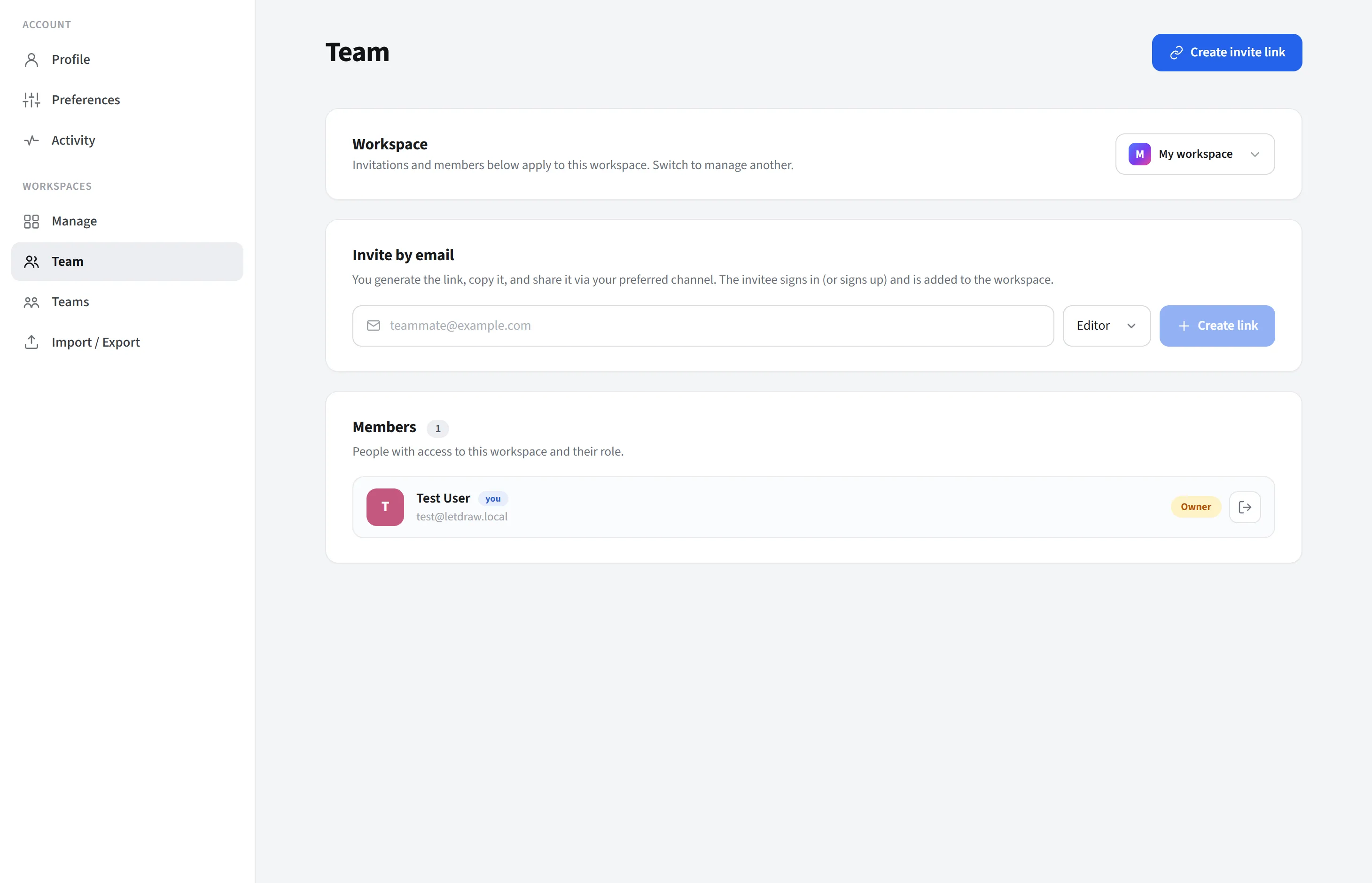
Team lives in the Workspaces group of the settings page and manages the members of the active workspace. You can change which workspace you are managing using the workspace switcher at the top.
Members
Section titled “Members”Members are the people who belong to the currently selected workspace. A person joins a workspace in one of two ways: by accepting an invitation (email or invite link), or, if the company’s domain auto-join (Enterprise) is enabled, automatically on first sign-in. In your personal My Workspace, only you are present; team workspaces can have multiple members.
Each member appears in the list with the following details:
- Name and avatar: the member’s display name (from their profile) and a colored badge with their initial.
- Email.
- Role: owner, editor, or viewer (detailed in the Roles section below).
- Your own row is also marked as you.
The member management controls (change role, remove, invite) are visible only to owners and do the following:
- Change a member’s role (editor ↔ viewer). An owner’s role cannot be changed from here.
- Remove a member. An owner can remove non-owner members.
- Anyone can remove themselves, that is, leave the workspace.
Editors and viewers see the list but not these management controls.
Inviting
Section titled “Inviting”- Invite by email: enter an email and a role (editor/viewer) and send the invitation.
- Create invite link: generate a quick invite link and share it.
- Pending invitations: invitations not yet accepted are listed; you can copy their link.
Every member has a role in the workspace. The role determines what that person can do across all documents in the workspace (permissions are held on the workspace membership, not on the document itself). There are three roles:
The most privileged role; the person who creates the workspace is automatically the owner. An owner:
- Does everything an editor can do (create/edit content; see below).
- Manages members: sends invitations, creates invite links, changes members’ roles (editor ↔ viewer), and removes members.
- Manages workspace-level settings.
- Cannot have their own role changed or be removed by another member (they can only leave on their own).
Editor
Section titled “Editor”The full content collaboration role; it can do almost everything except member management:
- Create, open, edit, rename, move, and delete documents and folders.
- Use all editing tools such as drawing, real-time collaboration, comments, and presentation.
- Cannot: invite members, change roles, or remove members. Those are owner-only.
Viewer
Section titled “Viewer”A read-only role. That is, they can see the content but cannot change anything. A viewer can do exactly the following:
- Open and view all documents in the workspace. These files are marked read-only in the file picker.
- Watch an ongoing real-time collaboration session or presentation.
What a viewer cannot do:
- Create, edit, rename, move, or delete documents or folders (no write operation, including drawing on the canvas). The right to write content belongs only to owner and editor.
- Management operations such as inviting members, changing roles, or removing members.
Viewer is ideal for granting “look but don’t touch” access: stakeholders, clients, or anyone who needs to see the content but should not edit it.
Roles are workspace-specific: the same person can be an editor in one workspace and a viewer in another. When you switch workspaces using the workspace switcher at the top, your active role changes too.