

Presentation mode
Presentation mode turns your canvas into a full-screen slide show. The frames on the canvas become slides; the screen is stripped of all editing tools like Keynote/PowerPoint, and only the content remains. You present your diagram or whiteboard directly from LetDraw, without first exporting to PowerPoint.
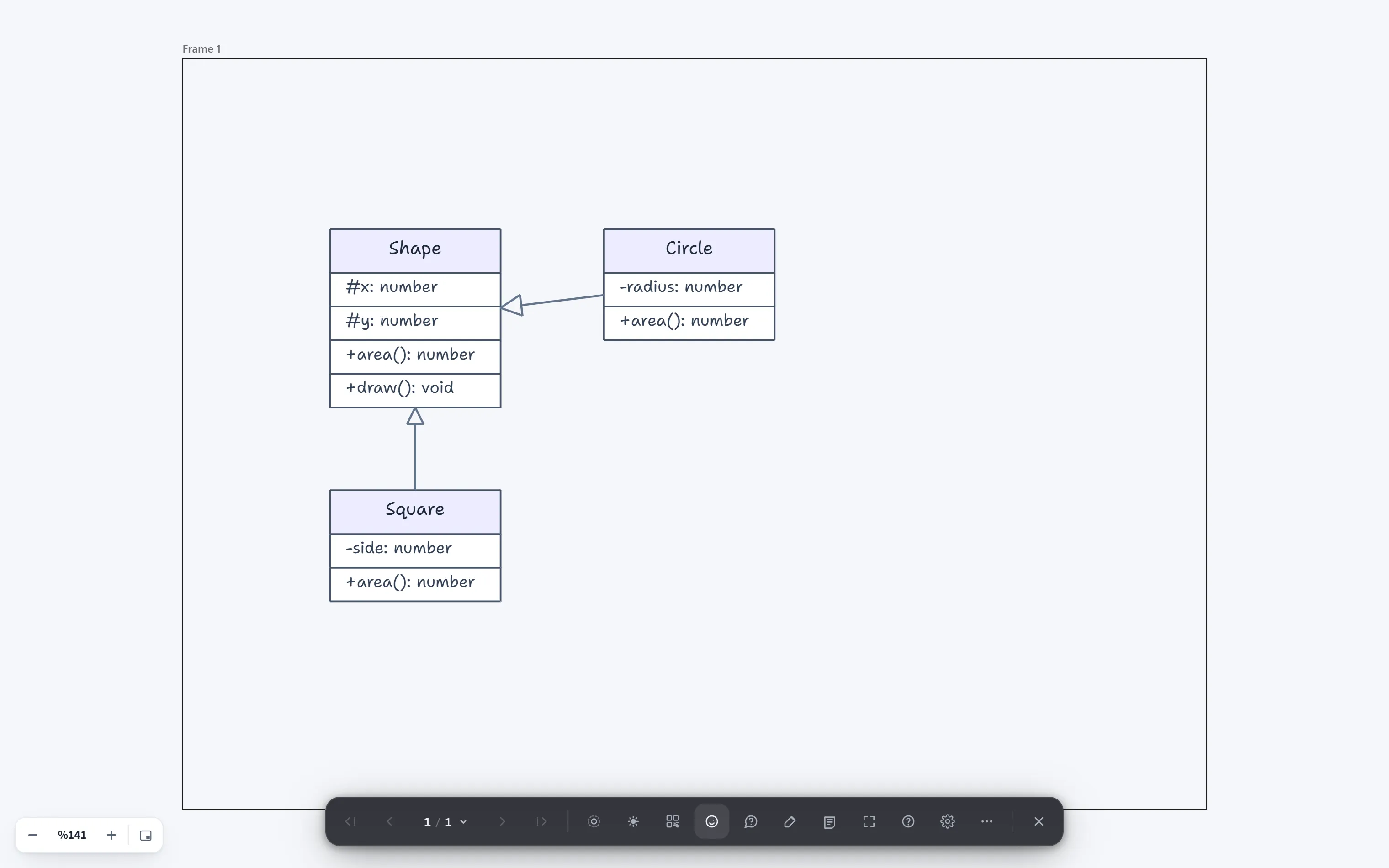
What it does, what it’s for
Section titled “What it does, what it’s for”- Present directly: present your drawing in place, without the hassle of exporting.
- Tools that aid narration: speaker notes, timer, spotlight, laser pointer, drawing over the slide, auto-advance, and more.
- Audience interaction: bring the room into the process with QR join, live emoji reactions, Q&A, and live polls.
- Kiosk/auto display: with loop mode and auto-advance, it runs by itself on unattended screens.
Who it’s for
Section titled “Who it’s for”Anyone presenting a board or diagram: team meetings, product demos, workshops, lessons, and customer presentations. It is ideal for those who would rather draw in LetDraw and present from the same place than rebuild their slides in a separate tool.
Which plan
Section titled “Which plan”Presentation mode is a Pro feature (including Enterprise; on self-hosted setups all members can use it). On the Free plan, a lock badge appears on the start button.
How slides are created
Section titled “How slides are created”- Draw slide frames on the canvas with the Frame tool; each frame is a slide.
- The order of the slides is the order in the Presentation panel (rearranged by dragging); hidden slides are skipped in the presentation.
- If there are no frames, Presentation mode shows a “draw a Frame first” hint instead of silently closing.
How to start
Section titled “How to start”- Hamburger menu → View → Presentation Mode; or
- The Start presentation button in the Presentation panel (or select a slide and Start from this slide).
When it starts, it zooms to the first slide and switches to full-screen display.
Navigation and tools
Section titled “Navigation and tools”A black presentation toolbar appears at the bottom; keyboard shortcuts also work
(advance with arrow keys / space, exit with Esc). Every button and shortcut is
explained in detail on the Presentation toolbar page. Use the Presentation
panel to prepare, reorder, annotate, and export the slides.
You exit the presentation with Esc; if an overlay is open (help, settings,
blackout), it closes first, and a second Esc ends the presentation. On exit, your
editing view and camera come back exactly as they were.