

Workspaces
LetDraw can keep your content two ways: without an account (local) and signed in (cloud). Locally, your drawings stay on your device; when you sign in, content is organized into workspaces, folders, and documents and synced to the cloud.
Local and cloud
Section titled “Local and cloud”- Without an account (guest): No installation or account needed. Your
drawings are kept in browser storage (on your device), work offline, and are
restored the next time you open the app. You work on a single local canvas; you
can save and open it as
.letdrawor export to PNG / SVG / PDF anytime. - Signed in (cloud): Once you sign in, your content is organized into workspaces, folders, and documents and synced to the cloud, so you can access it from different devices, share it, and (on Pro) collaborate. It keeps working offline and syncs when your connection returns.
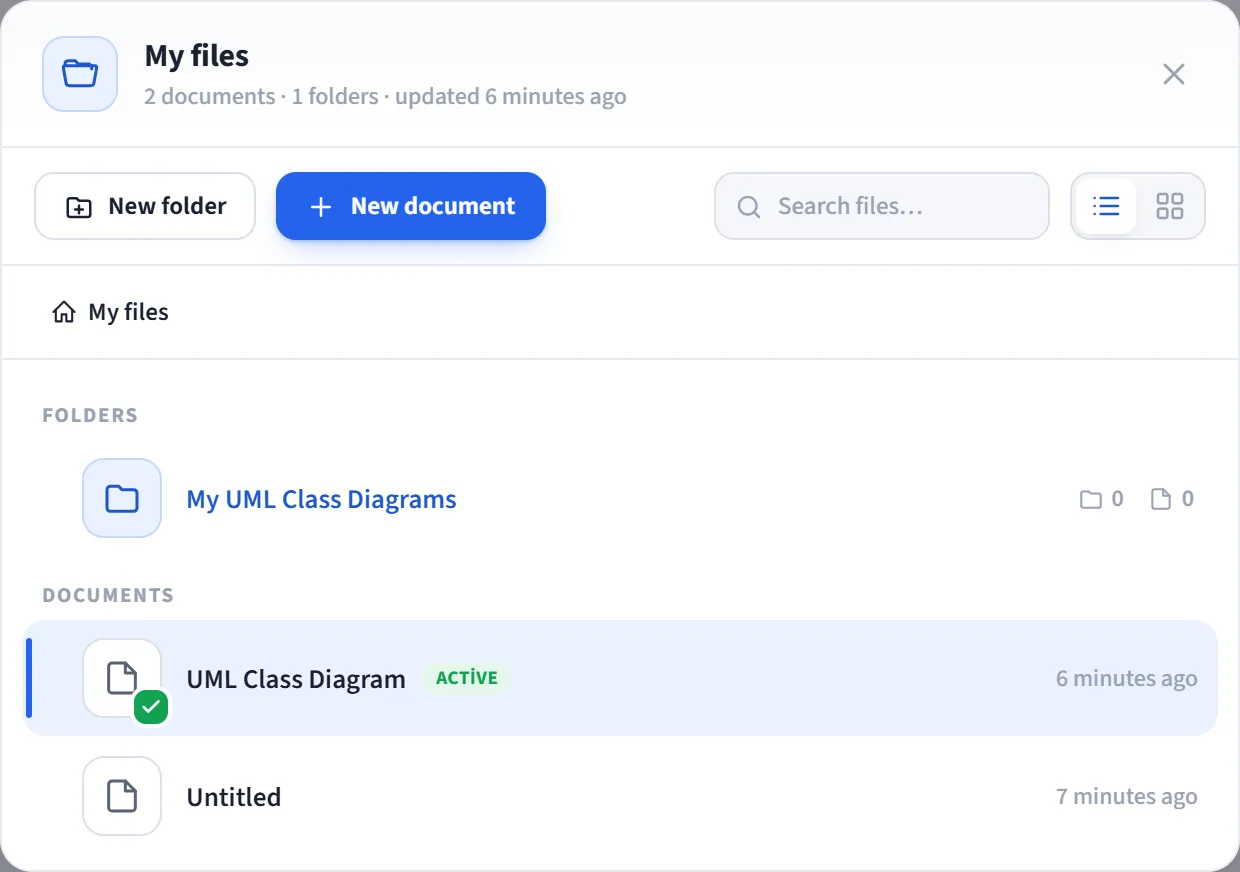
Workspace, folder, and document
Section titled “Workspace, folder, and document”When signed in, content is organized in a three-level hierarchy:
- Workspace: The top-level container. It belongs to a person or a team and holds folders and documents together. You can keep different work in separate workspaces (e.g. personal, team, client).
- Folder: A directory for grouping documents inside a workspace. Folders can be nested; you can create subfolders inside a folder.
- Document: The canvas you draw on; a single LetDraw file with a name, its content (the scene), and a thumbnail. A folder can hold multiple documents.
Hierarchy
Section titled “Hierarchy”Workspace └─ Folder (can be nested) └─ DocumentManaging
Section titled “Managing”You manage workspaces, folders, and documents from the in-app file navigator:
- Create: add a new workspace, folder, and document.
- Rename: rename any item.
- Move: drag and drop documents between folders.
- Switch: if you have multiple workspaces, switch between them quickly.
- Delete: remove items you no longer need.
Saving and exporting
Section titled “Saving and exporting”- Autosave: every change is saved automatically (to the browser locally, to the cloud when signed in).
.letdrawfile: save a document as.letdrawand open it elsewhere.- Export: PNG / SVG / PDF; plus recording the drawing process as WebM (see Export).
Cloud sync and offline
Section titled “Cloud sync and offline”When signed in, your documents sync to the cloud. Sync batches writes (debounced) and flushes changes when you close the tab, keeping them safe. You can keep working offline; changes sync once the connection is back.
Snapshots of larger drawings are end-to-end encrypted: small scenes are kept inline, larger ones are encrypted and uploaded to storage, so the server cannot see your content.
Version history
Section titled “Version history”On the Pro plan, documents keep a version history; you can view earlier versions from a chronological list.
Plan limits
Section titled “Plan limits”The number of workspaces, folders, and documents depends on your plan.
| Plan | Workspaces | Folders | Documents |
|---|---|---|---|
| Free | 1 | None (cannot be created) | Up to 3 |
| Pro | Up to 10 | Unlimited | Unlimited |
| Enterprise | Unlimited | Unlimited | Unlimited |
On Free you cannot create your own folders; your documents are kept in the workspace (in a default folder), up to 3 documents. On Pro folders and documents are unlimited, and workspaces are capped at 10. On Enterprise everything is unlimited.
Self-hosted
Section titled “Self-hosted”When you self-host (see Self-hosting) the deployment is licensed as a whole and billing is off, so workspaces, folders, and documents are unlimited.