

File
The hamburger menu at the top left → File holds document-level operations: new document, open/save, export, sharing, and shape libraries.
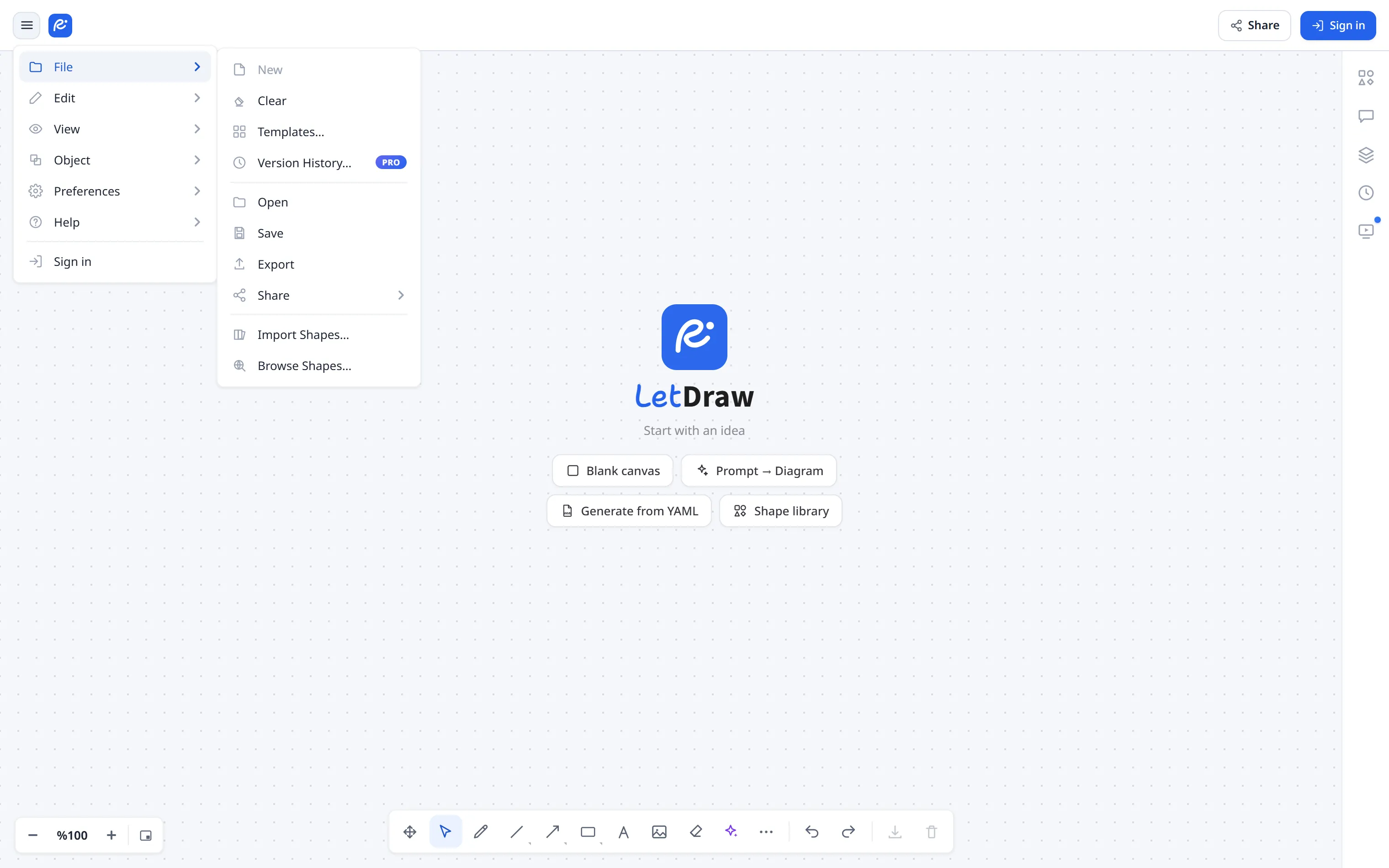
Creates a brand-new document and switches to it; the document you were working on stays untouched (it is already auto-saved under My Files). If the canvas is empty, a new document opens directly.
If there is work on the canvas, a three-way prompt first asks what to do with the current document:
- OK: keep the current document as-is and open a new one.
- Name & Save: name the current document first, then open the new one.
- Discard: delete the current document (after a second confirmation; this cannot be undone), then open the new one.
The Free plan allows at most 3 documents; when you hit the cap an upgrade dialog appears. For a guest (not signed in), New is disabled; since a guest has a single local canvas, they use Clear to start fresh.
How many documents you can create depends on your plan:
| User | Document allowance |
|---|---|
| Guest (not signed in) | No cloud document; just 1 local canvas (localStorage). Cannot create multiple files. |
| Free | At most 3 documents. |
| Pro | Unlimited documents (no cap). |
| Enterprise / self-hosted (billing off) | Unlimited. |
Returns the current canvas to a blank canvas. If there is something to lose, it asks for confirmation first (“The current drawing will be deleted. Continue?”). It clears the elements, the selection, and the undo history; the emptied scene auto-saves over the current document. The previous content can be restored from Version History. This is a guest’s way to start over.
Templates…
Section titled “Templates…”Opens the ready-made template gallery: a category rail on the left, a search box on top, and a real preview of the diagram on every card.
What happens when you apply one depends on where you are:
- Signed in with work on the canvas: a new document named after the template is created and opened; the document you were on stays untouched.
- Empty canvas: the template fills the current document, so no empty leftover document is created and no Free-plan document slot is wasted.
- Guest or offline: a cloud document cannot be created, so the template replaces the current canvas. You are asked to confirm first if there is anything to lose, and you can undo it afterwards with Ctrl+Z.
Templates with a PRO badge are paid-plan only; on the free plan clicking one opens the upgrade dialog. Reaching the Free-plan document limit opens it too.
Version History…
Section titled “Version History…”(Pro) Lists the cloud document’s snapshots, newest first and grouped by day. Each row shows the author, a relative time and a change summary: +added, ~edited, −removed. The right pane holds a preview of the selected snapshot, a Changes tab and download a copy (PNG).
Preview loads that snapshot onto the canvas and shows a banner at the top. While it is open your live document is not changed:
- Cancel or ESC: you return instantly to exactly what you had, with no changes and no waiting on the network.
- Restore: the previewed snapshot is saved as a new version on top of the history. Nothing is deleted; older versions stay in the list.
Snapshots are taken at most once every 10 minutes while you edit, and the list shows the 30 most recent.
Selects a .letdraw file from your device and loads it onto the canvas.
- If the canvas has work on it you are asked to confirm first; the file replaces the current drawing.
- Loading is undoable: Ctrl+Z brings your previous drawing back.
- Unsuitable files are rejected with a clear message: not valid JSON, not a LetDraw file, unsupported version, or missing fields.
- When you are signed in, the loaded content is saved over the current document; the previous state stays recoverable from Version History.
- Security: links embedded in the file’s elements only open when they start with http, https or mailto; any other scheme is ignored.
Downloads the current canvas as a .letdraw file, a reopenable source.
- The file is named after the document (e.g.
Org Chart.letdraw); characters that are not allowed in filenames are replaced with_. - Shapes you deleted are not written to the file. Deleted elements are kept in the scene as markers so collaboration stays in sync, but they never reach the saved file, so sharing it does not hand over deleted content.
- Coordinates are rounded to sub-pixel precision and the file is written without indentation, which makes large drawings markedly smaller.
- If saving fails you get an error notification.
Export
Section titled “Export”Opens the export dialog: PNG / SVG / PDF or .letdraw; you choose the scope
(all/selection), padding, scale (1×/2×/3×), and background (white/transparent). A real
preview of the chosen settings is shown on the left.
- Files are named after the document:
Name.png,Name.svg,Name.pdf,Name.letdraw. - Fonts come out exactly as on the canvas: the handwriting font you picked under Preferences → More settings (e.g. Shantell Sans) is applied to the output too.
- If the drawing exceeds the browser’s limit at the chosen scale you now get a clear error; try a smaller scale. You are also told when there is nothing to export.
- Deleted elements are excluded from every output.
- SVG note: an SVG records the font’s name, it does not embed the font. If that font is not installed on the machine opening the file, a similar one is substituted.
Opens a submenu:
- Share link: a one-way link containing a snapshot copy of the drawing.
- Live collaboration: an encrypted, live collaboration room.
The Share-link window also shows a QR code next to the link. The Snapshot · Live · Public tabs at the top switch to the other sharing modes without going back to the menu.
How the link is built:
- For a small drawing the link is the drawing: nothing goes to the server, and the link even opens offline.
- For a larger one the drawing is encrypted in your browser before upload. The
decryption key lives only in the part of the link after the
#, and browsers never send that part to the server, so the server cannot read the drawing. - If it is too large you get a clear error suggesting you split the document.
- Shapes you deleted are never put in the link. Coordinates are rounded as well, which keeps more drawings on the server-free path.
When you open a link somebody sent you:
- If there is work on your canvas you are asked to confirm first; the link replaces your current drawing.
- Afterwards Ctrl+Z brings your previous drawing back.
- Corrupt or oversized links are refused safely; your tab will not freeze.
Import Shapes…
Section titled “Import Shapes…”Imports a .letdrawlib shape library file; the shapes are added to the Shapes
panel on the right under their own heading. The same import is available from the
Shapes panel itself.
- The outcome is always reported: a confirmation naming the library when it is added, or an “already imported” message when you pick one you already have.
- If the file is unsuitable you are told why: not valid JSON, not a
.letdrawlib, no name, no shape list, or no usable shapes. - Files larger than 10 MB are refused.
- Libraries marked PRO need a paid plan; on the free plan the upgrade dialog opens.
- Security: the SVG of each icon is filtered (only drawing tags and attributes survive;
scripts and event handlers are dropped), and links inside an icon are limited to
#references within the same file. An imported library therefore cannot make your browser fetch anything from a third-party server.
Browse Shapes…
Section titled “Browse Shapes…”Opens shapes.letdraw.com, the catalog of ready-made shape libraries, in a new tab. The tab is opened so that the page cannot navigate your letdraw tab somewhere else. Self-hosted installs can point this at their own catalog.