

Preferences
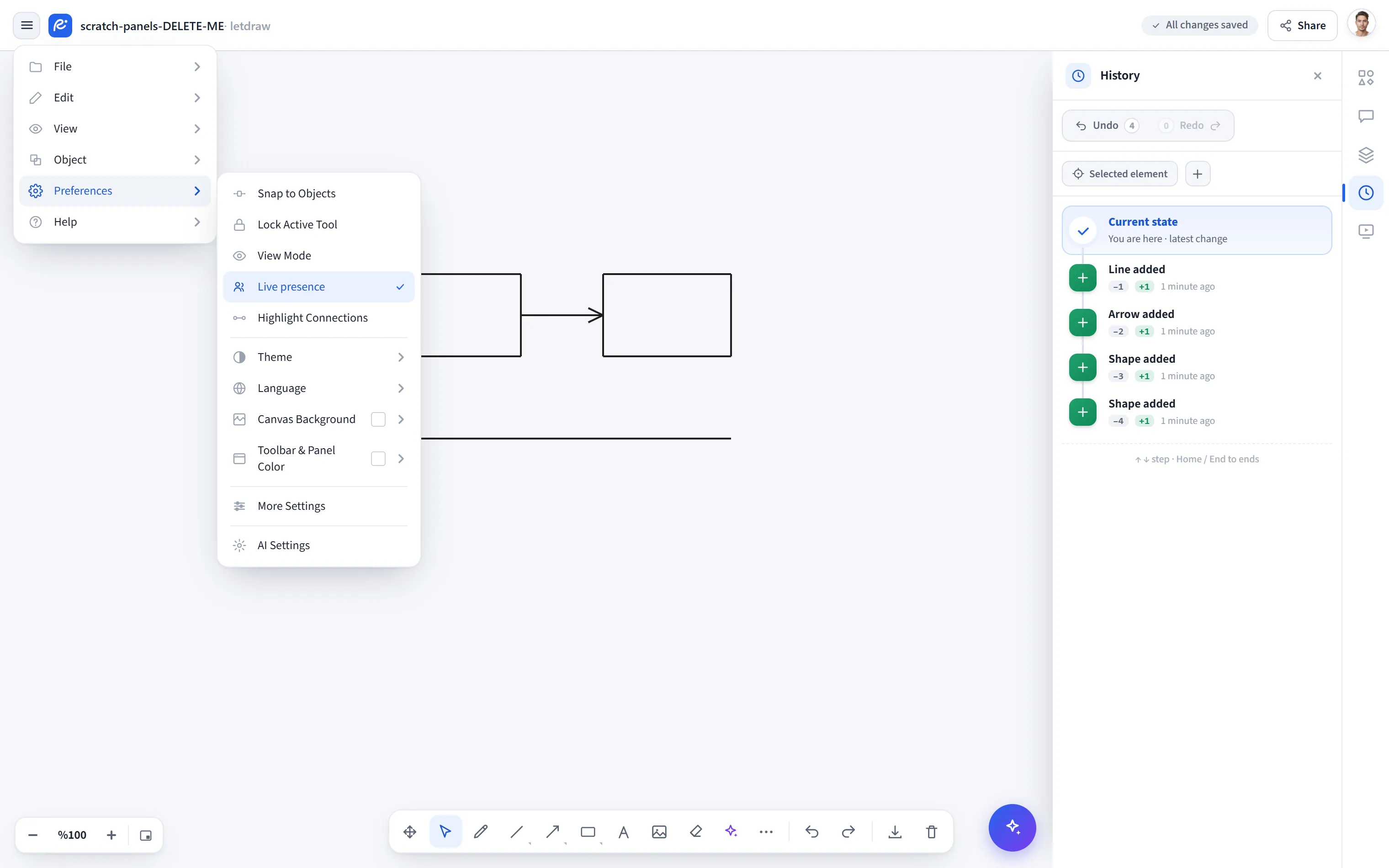
The hamburger menu at the top left → Preferences personalises drawing behaviour and appearance. These preferences are stored in this browser (remembered across sessions) and are not part of the document: they aren’t shared with a file, and don’t add a step to the undo history. All of them save instantly. Nothing here changes the document, so they stay available while View Mode is on.
Snap to Objects
Section titled “Snap to Objects”Snaps and aligns to the edges and centres of other objects while you draw and move elements. Turn it off for free, snap-less placement.
Lock Active Tool
Section titled “Lock Active Tool”Keeps a drawing tool selected after each use instead of switching back to Select automatically; handy for drawing the same shape several times in a row.
View Mode
Section titled “View Mode”Switches to a read-only mode: toolbars, the selection bar and panels are hidden, leaving just the canvas. While it’s on, every action that changes the document (in the menus, shortcuts, context menu and command palette) is disabled; reading, selection, zoom and Find stay available, so the document you’re presenting can’t be changed by accident. The same switch also lets you leave the mode.
Live Presence
Section titled “Live Presence”Shows the live cursors and avatars of others viewing the same cloud document, without starting a share room. When off, presence appears only in live share rooms you start yourself.
Highlight Connections
Section titled “Highlight Connections”When you select a shape, highlights the other shapes connected to it by arrows, so you can see at a glance what a node connects to.
Chooses the interface theme. Besides Light, Dark and System (which follows your operating system’s theme and flips instantly when you change it), there are eight coloured themes: five light tints (Cream, Mint, Sky, Lavender, Blush) and three dark tints (Midnight, Forest, Wine). A coloured theme also applies a matching canvas background, unless you set Canvas Background separately.
Language
Section titled “Language”Chooses the app language. Eleven languages, each listed by its own name: English, Dansk, Deutsch, Español, Français, Italiano, Nederlands, Norsk, Polski, Русский, Türkçe. The interface switches the moment you pick one.
Canvas Background
Section titled “Canvas Background”Sets the canvas background colour:
- Theme default: leaves it to the theme (near-white in light mode, near-black in dark mode; a matching tint in coloured themes).
- Presets: a few ready-made choices.
- Custom…: a colour picker; the colour you choose is reflected on the canvas live.
Toolbars & Panels Color
Section titled “Toolbars & Panels Color”Sets the surface colour of the toolbars and panels (the chrome): Theme default or a few presets.
More Settings
Section titled “More Settings”Opens a window with extra appearance and layout preferences. Changes save instantly, and there’s a Reset to defaults button:
- Interface font and Handwriting font: the font of the menus/panels and the handwriting font on the canvas. The handwriting font also carries into export and copy-to-clipboard.
- Style: whether the chrome looks shadowed or bordered (a 2-pixel outline).
- Grid style: the look of the background grid.
- Toolbar Position and Selection Bar Position: where the centre toolbar and the floating bar above a selection sit.
- Shapes Panel Position and Library grouping: where the Shapes panel sits in the right dock and how its contents are grouped.
- Right panel width: whether the right panel can be resized.
AI Settings
Section titled “AI Settings”Opens a window where you manage your AI provider and your own API key (BYOK).
- Provider: the default (built-in) or, with your own key, OpenAI, Claude, Gemini or OpenRouter. OpenRouter also has a model picker.
- The key is kept per provider: switch providers and back without re-pasting.
- Storage: a key entered here is stored on this device only (locally). If you’re signed in, you can instead store keys encrypted in your account and sync them across devices from the Account → API Keys page.
- The key is written only when you press Save, not on every keystroke, and there is a show/hide toggle.
This item is hidden when the operator has disabled BYOK.