

Shape library
A shape library is a package of reusable icons and shapes (a .letdrawlib file).
For example, cloud/AWS/Kubernetes icons, or UML and flowchart sets. When you add a
library to LetDraw, its shapes appear in the Shapes panel on the right and you can
drag them onto the canvas.
shapes.letdraw.com is the public, community-contributed catalog of shape libraries. From there you can discover libraries, send them to the editor with a single click, or download them as a file.
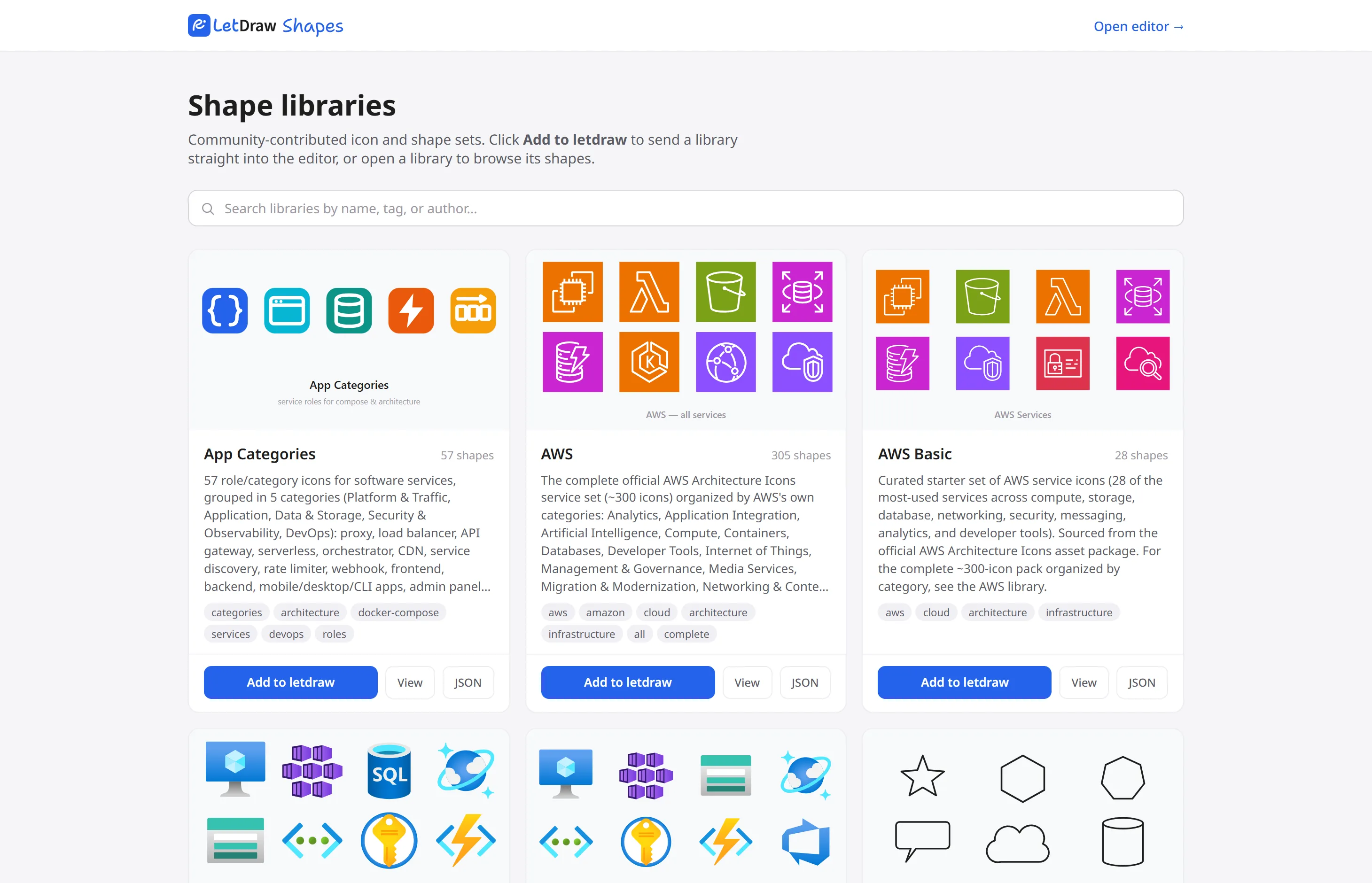
Home page
Section titled “Home page”- At the top, the LetDraw Shapes logo and, on the right, an Open editor → link (opens the editor).
- A heading (“Shape libraries”) and a short description.
- Search box: filters libraries by name, tag, or author (
Escclears it). - Below it, a grid of library cards.
- At the bottom of the page, Contribute a library (add your own library) and editor links.
What’s on a library card
Section titled “What’s on a library card”Each card summarizes a library and offers three buttons:
- Add to letdraw: sends the library straight to the editor; you don’t need to download a file and add it manually. LetDraw imports the library on launch and adds it to the Shapes panel on the right; you can drag its shapes onto the canvas right away. (Paid packages have a Pro badge, and the import requires a Pro/Enterprise plan.)
- View: opens the library’s detail page; so before adding it, you can preview the shapes inside, browse categories, and even pick and take only the shapes you want.
- JSON: (for free libraries) downloads the raw
.letdrawlibfile. You can import the downloaded file in LetDraw via Hamburger menu → File → Add shape…; this is handy for keeping a library offline, sharing it with someone, or adding it to a self-hosted installation.
Detail page
Section titled “Detail page”The detail page is for seeing a library’s contents before adding it: it previews each shape inside with its icon, browses its categories, searches within the library, and, if you like, picks and takes only the shapes you need. This way you answer the question “what’s in this package, is it useful to me?” without downloading the package.
It opens when you click a card or View. On the page you can:
- Preview shapes: each shape is listed with its own icon and label; on hover, its label and (if any) license/brand note appear as a tooltip.
- Search within the library: filter shapes by name or category.
- Navigate categories: shapes are divided into categories; on the left there is a side navigation that highlights the active category as you scroll. If items have no category, a single flat grid is shown; items left without a category are grouped under “Other”.
- Add to letdraw: send the entire library straight to the editor.
- JSON: (for free libraries) download the entire library as
.letdrawlib. - Select shapes: pick only the shapes you want and create a custom library of your own (see below).
- Use ← All libraries at the top to return to the catalog list.
Selecting shapes to build your own library (Select shapes)
Section titled “Selecting shapes to build your own library (Select shapes)”For free libraries, you don’t have to take the whole package; you can pick the shapes you want and produce a new library made up of only those. For example, from a large icon set you can take just the few icons you’ll use in your project and make your own small set:
- On the detail page, press Select shapes; you enter selection mode.
- Click the shapes you want to check them. For bulk selection, use Select all at the top (when filtered by search, “select matches”), or the Select all button on a category heading; Clear removes all. The top shows how many shapes you’ve selected (“N selected”).
- Use Download .letdrawlib to download a new file made up of only your selections.
“(selection)” is appended to the library name; the file name is in the form
id-selection.letdrawlib. - When done, exit selection mode with Done.
You can import this personal library you downloaded in LetDraw via Hamburger menu → File → Add shape…, keep it offline, or share it with your team.
Note: Selecting shapes is available only for free libraries; this option is disabled for premium packages (to prevent downloading the whole package and breaking it apart).
Contributing
Section titled “Contributing”If you want to share your own set, the Contribute a library link on the home page takes you to the library repository (github.com/letdraw/shapes).
Related menus
Section titled “Related menus”You also reach this catalog and the import from LetDraw’s Hamburger menu → File
section: Browse shapes… opens the site, while Add shape… imports a .letdrawlib
file directly.