

Highlight
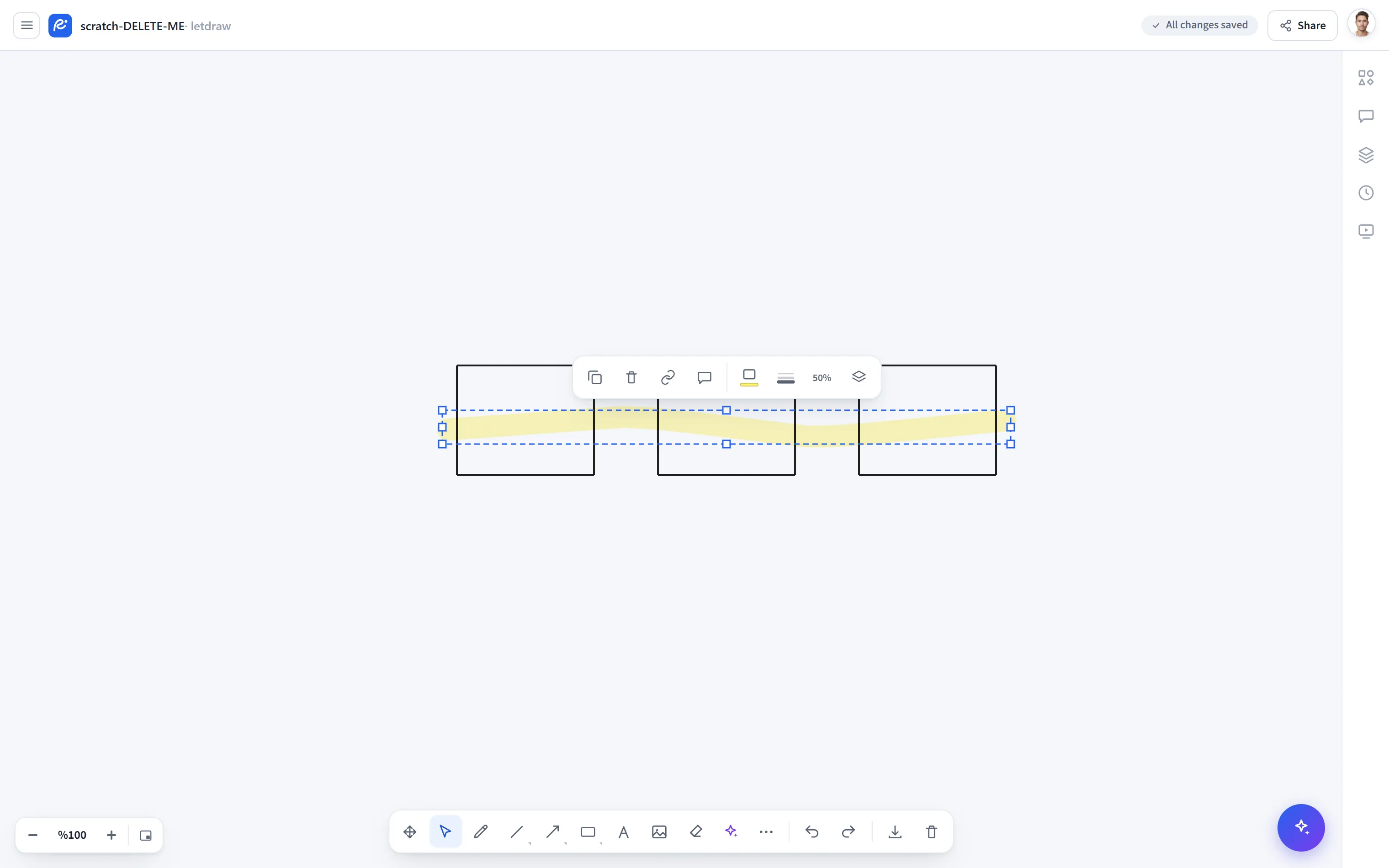
Highlight (Highlighter) draws semi-transparent, thick strokes like a fluorescent marker. Unlike the Laser pointer, this is a permanent element: it stays in the drawing, is saved, and can be selected and edited later. It is transparent so the content beneath it remains visible.
How to open
Section titled “How to open”In the bottom toolbar, More tools (⋯) → Highlight; or press H on the
keyboard.
Shortcut
Section titled “Shortcut”| Key | Function |
|---|---|
H | Select the Highlight tool |
How to use
Section titled “How to use”- Select More tools → Highlight (or
H). - Drag over the text or shape you want to mark.
- A semi-transparent stroke remains; the content beneath it stays readable.
Selection bar
Section titled “Selection bar”When you draw a highlight stroke and select it, a selection bar appears above it:
- Color: choose the highlight color.
- Thickness: adjust the stroke thickness.
- Transparency: change the opacity with the slider.
- Layer order and Duplicate / Delete.
- Use Highlight when you want to leave a permanent mark; use the Laser pointer when you only want to point at something momentarily.