

My files
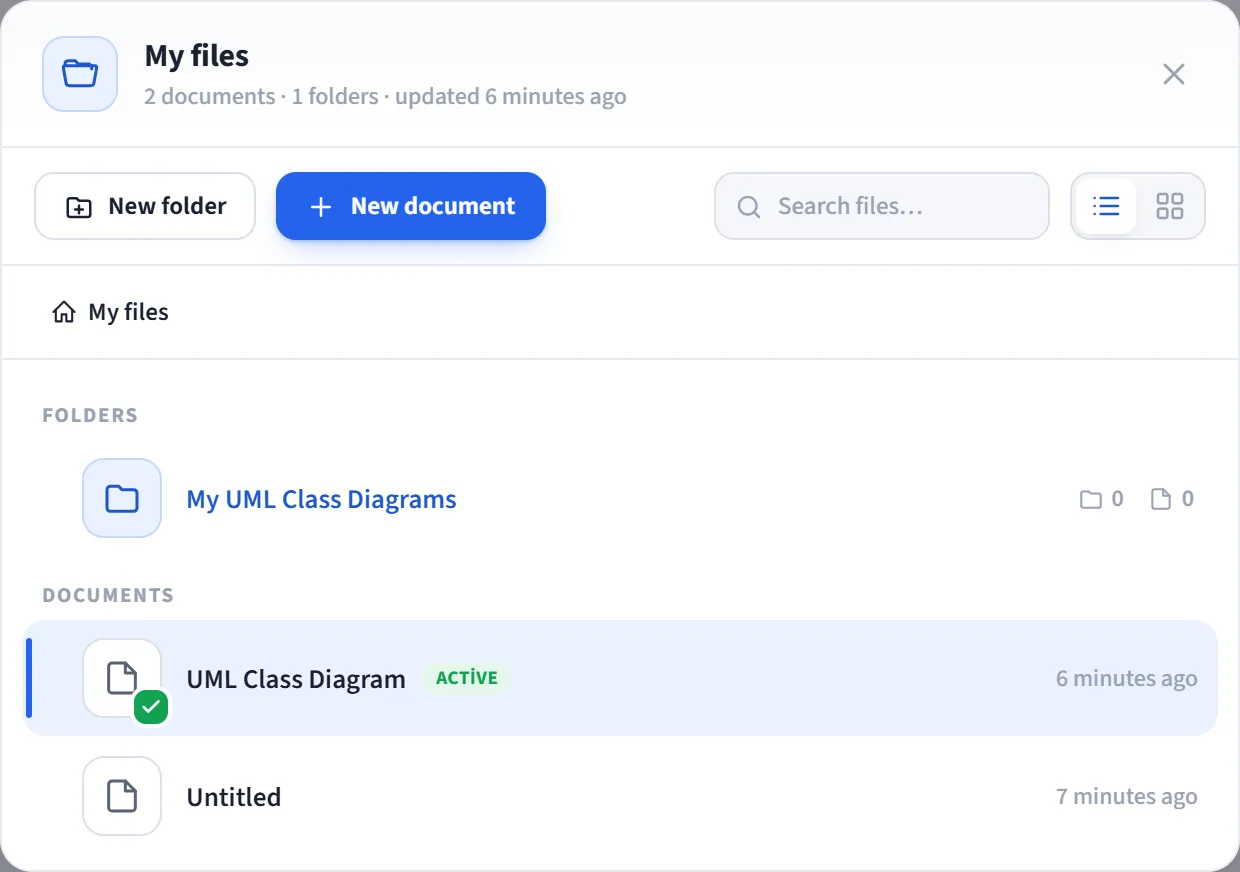
My files is a file explorer (window) where you browse the folders and documents of your active workspace. You use it to find and open a saved document, create new folders/documents, edit them, and manage who can see them. The explorer always shows the currently selected workspace; to see another workspace’s files, first switch the workspace from the account menu.
How to open
Section titled “How to open”The avatar at the top right → My files.
What you see
Section titled “What you see”- Folders and documents belonging to the active workspace are listed together.
- At the top there is a breadcrumb (path) showing your current location.
- The document currently open on the canvas is marked with an Active badge.
- If a folder is empty, a “This folder is empty” message appears.
Navigating and opening
Section titled “Navigating and opening”Any role can perform these actions (including viewers):
- Enter a folder: click a folder; use the breadcrumb to go back up levels.
- Open a document: click a document; the canvas switches to that document and the window closes.
- Search: the search box filters the contents of your current folder by name.
- List / Grid view: the grid is for browsing only (opening/entering and dragging); editing actions such as renaming and deleting are done in list view.
Editing
Section titled “Editing”The actions below are available only if you have the owner or editor role in the workspace. For viewers, these controls are hidden (see Who can see and edit below).
- Create: New folder or New document in the current folder. An inline name box opens at the top; type a name and press Enter to create it (a document opens immediately). If the name is left blank, it becomes “Untitled”.
- Rename: rename a row in place (inline).
- Delete (two-click confirm): for a document, “click again to delete”; for a folder, “click again; the folder and its contents will be deleted”. Deleting a folder also deletes all documents inside it.
- Move: drag a row and drop it onto another folder to move it.
Who can see and edit
Section titled “Who can see and edit”Access consists of two layers: workspace role and folder access.
Workspace role (all roles: Roles):
- Owner / Editor: sees and edits files (create, rename, delete, move; manage folder access).
- Viewer: read-only. Can see and open files but cannot create, rename, delete or move anything. A “You have read-only access to this workspace” note appears in the window, and all editing controls (create/rename/delete, the drag handle) are hidden.
Folder access narrows visibility on a per-folder basis. Each top-level folder has three scopes (only those with write permission set them):
- Everyone: all members of the workspace see this folder.
- Specific teams: only members of the selected teams (and the workspace owner) see it.
- Private (only me): only you and the workspace owner see it.
If a folder is hidden from a person, that person never sees the folder and all documents inside it in My files. The workspace owner keeps access in every scope.
Setting folder access
Section titled “Setting folder access”In list view, click the access (lock) button on a top-level folder’s row. In the Folder access window that opens, choose one of the three scopes above; for “Specific teams” you must first create Teams. The change is saved instantly.
Requirements
Section titled “Requirements”- My files is a Pro feature in the hosted (SaaS) version; on the Free plan a PRO label appears in the menu and clicking it opens the upgrade window.
- On self-hosted installations all users can access it.
- Cloud files are documents you saved to the cloud while signed in; the explorer shows the contents of the active workspace.