

Image to diagram
Image to diagram examines an image (a whiteboard photo, a screenshot, a hand-drawn sketch) with the AI’s “vision” capability and converts it into editable LetDraw shapes. It is ideal for quickly turning a flow drawn during a meeting or an old screenshot into a digital, editable diagram.
How to open it
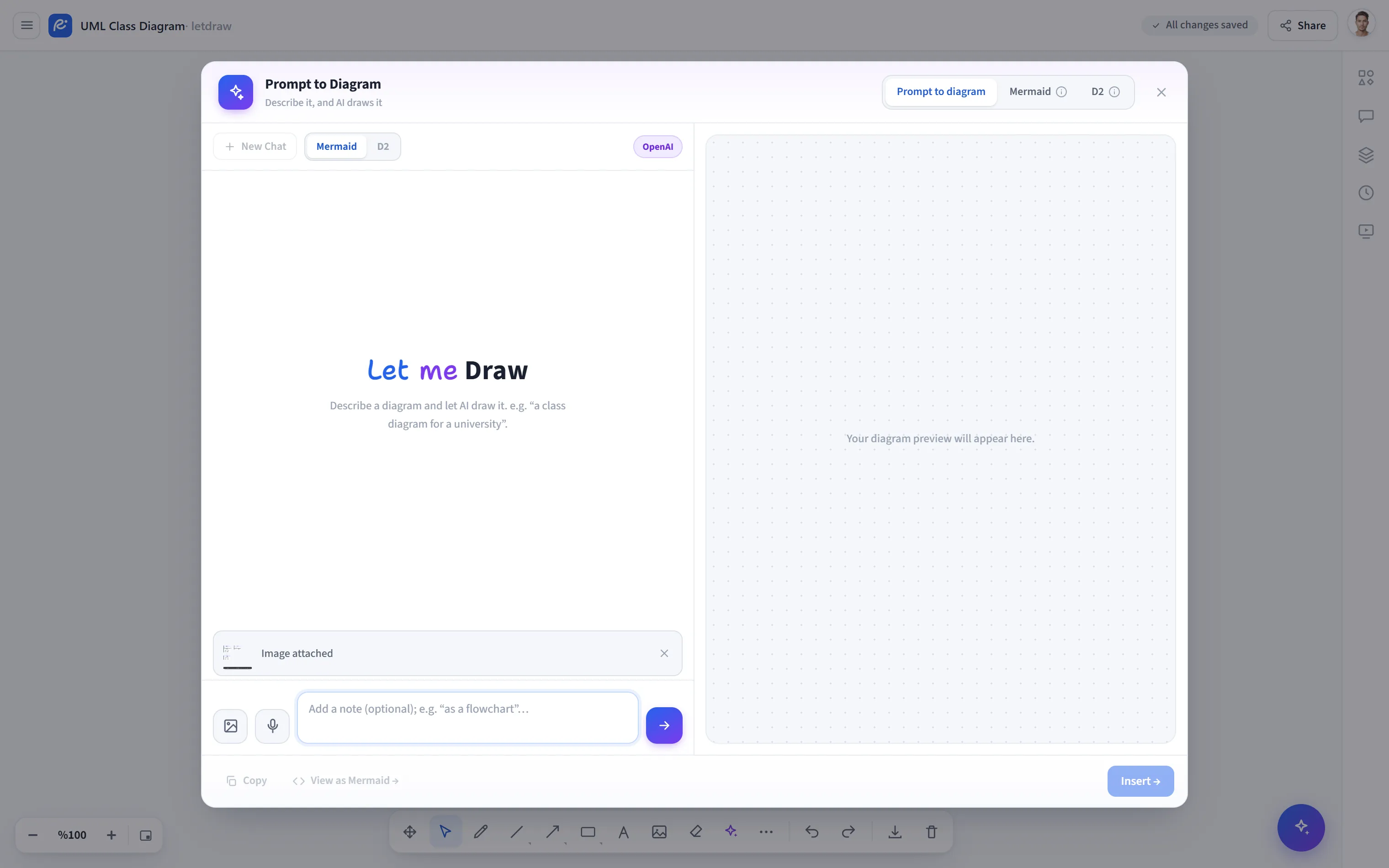
Section titled “How to open it”Click the AI and diagram tools button (✦) in the bottom toolbar and choose Image to diagram from the menu. The image picker opens directly. (This is the same window as Prompt to diagram; the image picker just opens automatically.)
How to use it
Section titled “How to use it”- Open AI and diagram tools → Image to diagram.
- Choose an image (PNG/JPG). The image is added to the window.
- If you like, write a short note (“extract only the main flow”, “keep the box text”) and submit.
- Check the preview on the right; if needed, write refinement messages in the same chat and regenerate.
- Use Add to place the diagram on the canvas. Because the result is made of real shapes, you can freely fix the box text, arrows, and layout.
Ways to add an image
Section titled “Ways to add an image”- When you open Image to diagram from the menu, the file picker appears immediately.
- While the window is open, you can add another image at any time with the image button in the input bar.
- You can paste an image from the clipboard directly (
Ctrl/⌘ + V).
Preview controls
Section titled “Preview controls”The preview has drawing style (clean/sketch), font (normal/handwriting), and zoom controls; you can also edit the output as source on the Mermaid or D2 tab.
Provider and quota
Section titled “Provider and quota”- A provider that supports vision (image understanding) is required.
- Default: runs through the server we host, no extra key needed.
- Your own key (BYOK): you can enter the key of a vision-capable provider from AI Settings (e.g. OpenAI, Google Gemini). With your own key, the free request limit does not apply.
- Free plan: a free request allowance is granted on the operator server; when it runs out, you can upgrade to Pro or add your own key.
- Clear, high-contrast images shot straight on give the best results.
- For a complex image, it is cleaner to first give a narrow note like “only boxes and arrows”, then add detail in the chat.