

Developer
Developer is in the Account group of the Account settings page. You create and manage personal API tokens for the LetDraw REST API and MCP server here. With these tokens you can access LetDraw diagrams programmatically from a script, or connect an AI client (such as Claude or Cursor) to LetDraw over MCP.
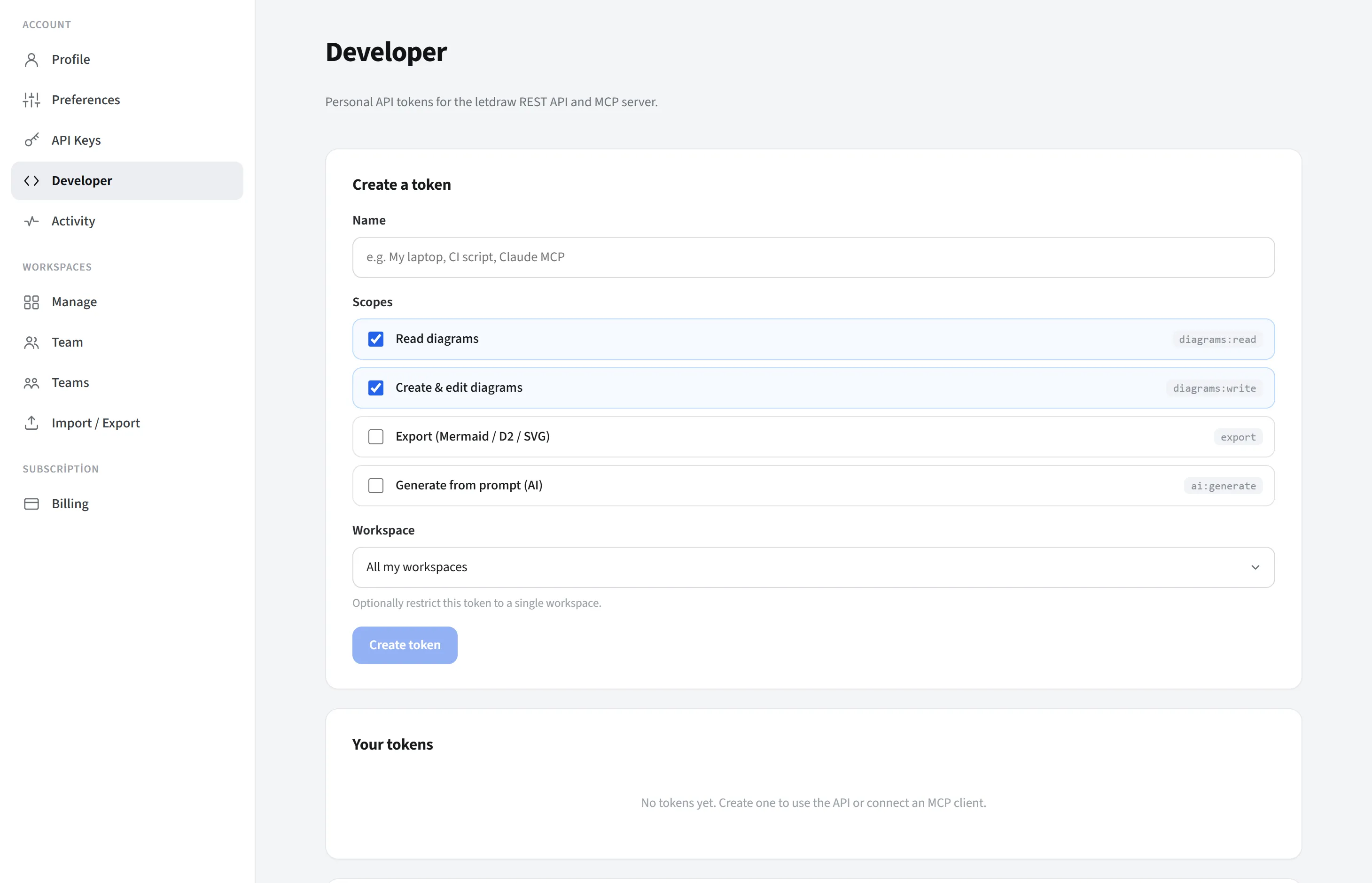
Who sees it
Section titled “Who sees it”Signed-in Pro/Enterprise users (on SaaS), or all members on self-hosted.
Create a token
Section titled “Create a token”From the Create a token card:
- Name: a label to help you remember the token (e.g. “My laptop”, “CI script”, “Claude MCP”).
- Scopes: you choose what the token is authorized to do (least-privilege
principle; grant only what is needed):
diagrams:read(Read diagrams): reads/lists diagrams.diagrams:write(Create and edit diagrams): creates and modifies diagrams.export(Export): exports a diagram as Mermaid / D2 / SVG.ai:generate(Generate from prompt): generates a diagram from a text prompt (AI).
- Workspace: you can scope the token to all workspaces or to only a single workspace.
- Press Create token.
Once the token is created, its raw value (with the ld_live_… prefix) is shown only
once; the server stores only a digest of it and can never show the full value again.
Copy it immediately and store it somewhere safe. If you lose it, you get a new one
by rotating it.
Your tokens
Section titled “Your tokens”Every token you create is listed in the Your tokens card; its name, prefix, scopes, (if any) workspace and last used date are shown. There are two actions:
- Rotate: generates a new token and instantly invalidates the old one. Use it when you suspect a leak or for periodic renewal; then update your clients with the new token.
- Revoke: permanently disables the token. Every client using it stops working instantly.
Connecting
Section titled “Connecting”The Connecting card shows where and how to send your token. The token is sent on every request as a Bearer header:
Authorization: Bearer <your-token>There are two endpoints (copyable on the card; the ones below are the SaaS addresses; on self-hosted it is your own server’s address):
- REST API base address:
https://api.letdraw.com/api-v1(for programmatic access from scripts). - MCP server URL:
https://api.letdraw.com/mcp(for connecting an AI client).
Connect an MCP client
Section titled “Connect an MCP client”MCP (Model Context Protocol) lets AI clients (such as Claude or Cursor) use LetDraw as a tool: your client connects to the LetDraw MCP server with your token and reads, creates, edits or exports diagrams (whatever your token’s scopes allow).
Steps:
- Create a token above.
- Select your client from the Connect an MCP client card.
- Paste the given configuration into the relevant file and save. (If you just created a
token, it is embedded into the configuration automatically; otherwise replace the
ld_live_YOUR_TOKENplaceholder with your own token.) - Restart the client.
Supported clients and configuration locations:
| Client | Configuration location | Connection format |
|---|---|---|
| Cursor | ~/.cursor/mcp.json | Direct remote HTTP |
| VS Code | .vscode/mcp.json | Direct remote HTTP (type: http) |
| Claude Code | Terminal (command) | claude mcp add command |
| Claude Desktop | claude_desktop_config.json | npx mcp-remote bridge |
| Codex | ~/.codex/config.toml | npx mcp-remote bridge |
| OpenCode | opencode.json | Remote (type: remote) |
For each client, the card provides the full ready-to-paste configuration. Examples:
Cursor (~/.cursor/mcp.json):
{ "mcpServers": { "letdraw": { "url": "https://api.letdraw.com/mcp", "headers": { "Authorization": "Bearer ld_live_YOUR_TOKEN" } } }}Claude Code (in the terminal):
claude mcp add --transport http letdraw https://api.letdraw.com/mcp \ --header "Authorization: Bearer ld_live_YOUR_TOKEN"Bridge note: Since Claude Desktop and Codex do not speak remote HTTP MCP directly,
they are bridged via npx mcp-remote; for these clients Node.js must be installed,
and after saving you must restart the client.
Security
Section titled “Security”- An API token is as strong as a password; do not share it with anyone or put it in public repositories.
- Least privilege: grant only the scopes needed and, where possible, scope the token to a single workspace.
- The raw token is shown only once; the server keeps only its digest.
- In case of a leak or suspicion, Rotate or Revoke.
For the full list of endpoints, scopes and MCP tools, see the API and MCP reference page.