

Edit
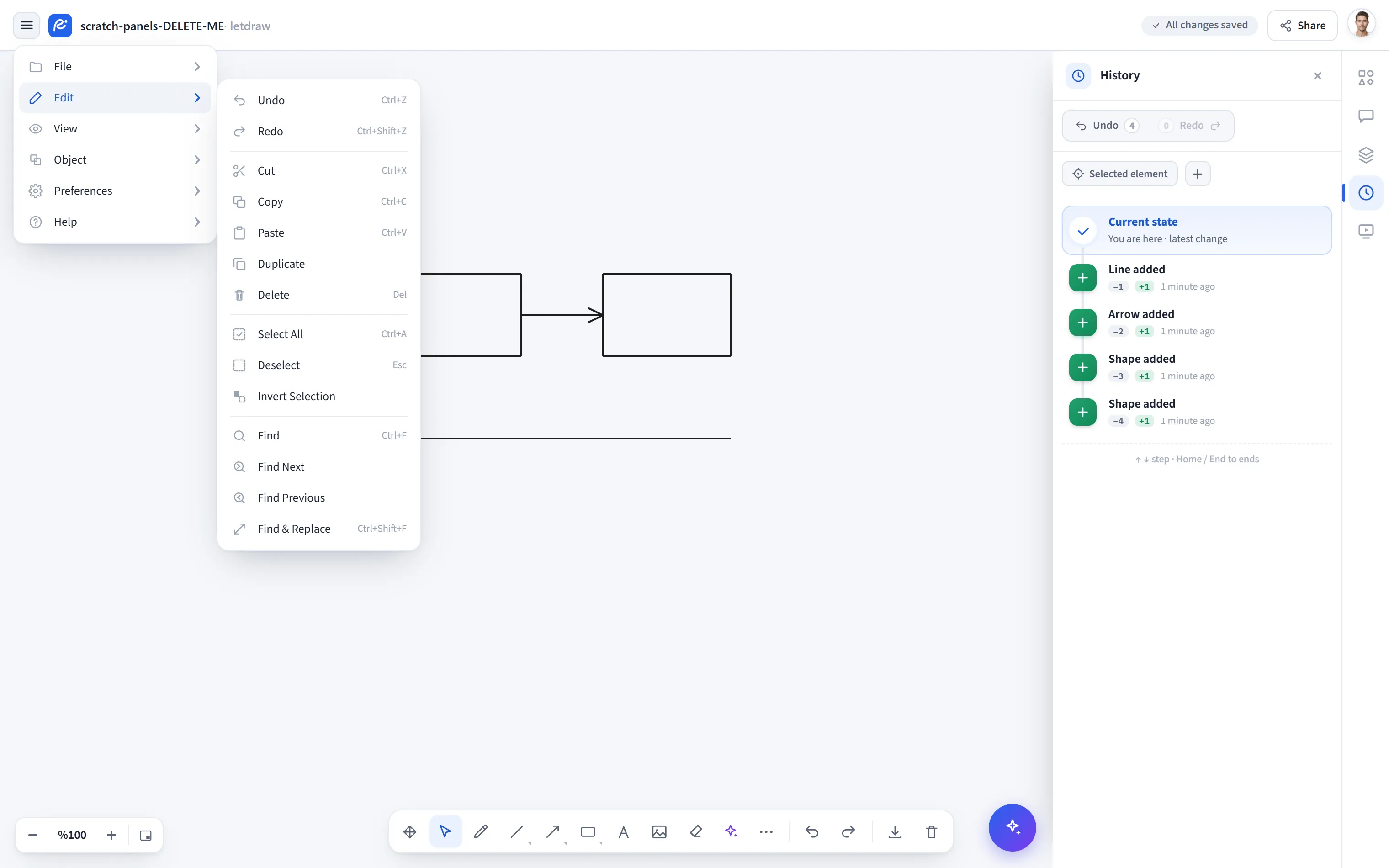
The hamburger menu at the top left → Edit holds undo, clipboard, selection and search actions. Most have a keyboard shortcut, and an entry greys out when it has nothing to act on (for example Copy with no selection).
Reverses the last action (Ctrl+Z). History keeps up to 100 steps; the
oldest drops off once the limit is reached. Undo isn’t only local: its result is
saved to the cloud and reaches everyone in a live collaboration room, so a change
you undo won’t come back after you close and reopen the tab.
Re-applies an action you undid (Ctrl+Shift+Z or Ctrl+Y). Making a fresh edit
clears the redo history.
Puts the selection on the clipboard and removes it from the canvas (Ctrl+X).
Selecting a frame takes its contents too, so a frame and its contents move as one
piece. The clipboard is letdraw’s own: what you cut is for pasting back inside
letdraw, and doesn’t go to the system clipboard.
Copies the selection to letdraw’s clipboard (Ctrl+C). Copies are deep-cloned, so
later edits to the original don’t change what you’ll paste. Selecting a frame
copies its contents too. Deleted elements (hidden by a collaborator) are left out
of the copy.
Inserts the clipboard into the canvas (Ctrl+V). A paste:
- Gives each element a fresh id, so documents and copies never collide.
- For arrows: if the shapes an arrow was bound to came along in the same paste, the arrow is re-bound to the copies; otherwise it’s freed. A copied arrow never binds back to its original.
- For groups: the copy forms its own group rather than joining the original’s, so clicking one doesn’t also select the other.
- Placement: normally 20 pixels down and right of the source. If you’ve scrolled away from it, the copy lands in the centre of the view instead, so a paste never drops somewhere off-screen.
- If it lands inside a frame, it joins that frame.
The clipboard is letdraw’s own; it won’t paste an image or text from another app.
Copy as PNG to Clipboard
Section titled “Copy as PNG to Clipboard”Writes the selection (or the whole drawing when nothing is selected) to the system clipboard as a PNG image, so you can paste it into another app (Slack, an email, a doc). The result is always reported: a confirmation on success, or an error when the clipboard write fails (no permission, an insecure context, or a scene too large to encode). The image uses the same handwriting font as the canvas.
Duplicate
Section titled “Duplicate”Clones the selection 20 pixels offset and selects the copies (Ctrl+D). It
follows the same rules as paste: a frame comes with its contents, arrows re-bind
to the copies, and the copies form their own group.
Delete
Section titled “Delete”Deletes the selection (Del or Backspace). Deleting is undoable and
collaboration-safe: elements aren’t thrown away outright but kept as hidden
markers, so a peer’s snapshot can’t resurrect them.
- Deleting a frame deletes its contents too.
- Deleting a mind-map node takes its subtree and connector arrows with it, then re-lays-out the surviving branches. Deleting the root doesn’t drag the subtree, so you can still delete the root on its own to clear the whole tree.
Select All
Section titled “Select All”Selects every visible element on the canvas (Ctrl+A). Deleted markers stay out
of the selection.
Deselect
Section titled “Deselect”Clears the selection (Esc). Does nothing when there’s no selection.
Invert Selection
Section titled “Invert Selection”Selects the elements that weren’t selected, and drops the ones that were.
Searches the text of elements on the canvas (Ctrl+F). The search is
case-insensitive, and the bar shows where you are in the results (like “3 / 7”).
Going to a match pans there but keeps your zoom; it only zooms out when the
match won’t fit on screen. The match list stays live with the document: change
text yourself or have a peer change it and the counter updates, and a deleted
element is never focused.
Find Next / Find Previous
Section titled “Find Next / Find Previous”Steps forward (F3) and back (Shift+F3) through the matches, wrapping past the
last one. While the find bar has focus, Enter and Shift+Enter do the same.
When the bar is closed these commands open it, so you can see the match counter.
Find & Replace
Section titled “Find & Replace”Finds text and replaces it with other text (Ctrl+Shift+F). The search is
literal: characters like $ and . carry no special meaning. Replace
changes every occurrence in the current match; Replace All changes every match
in the document and reports how many were changed (including ones scrolled off
screen). Replace All is a single undo step, so Ctrl+Z reverses it all at once.
An empty replacement deletes the found text.
View Mode
Section titled “View Mode”While Preferences → View Mode is on, every entry that changes the document (Undo, Redo, Cut, Paste, Duplicate, Delete, Find & Replace) is disabled. The reading actions (Copy, Copy as PNG, selection and Find) stay available, so the document you’re presenting can’t be changed by accident.