

Code block
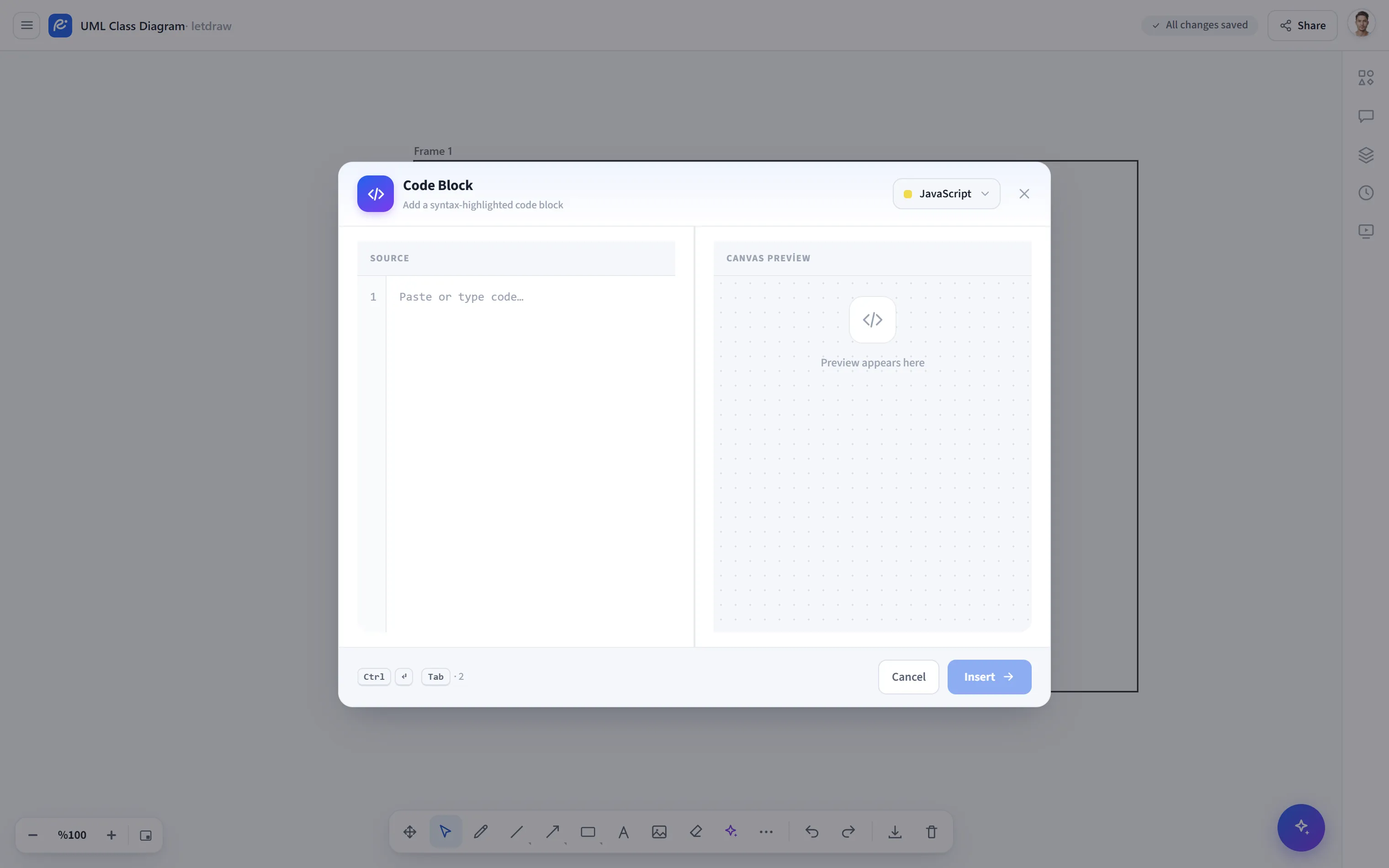
Code block adds a syntax-highlighted piece of code to the canvas. It is ideal for enriching architecture drawings with sample code, configuration blocks, or API calls. The window has two panels: a source editor on the left and a live preview of how it will look on the canvas on the right.
How to open it
Section titled “How to open it”More tools (⋯) → Code block in the bottom toolbar.
How to use it
Section titled “How to use it”- Open More tools → Code block.
- Choose the language from the language menu at the top right (JavaScript, TypeScript, JSX, Python, Go, Rust, Java, C, C++, C#, PHP, Ruby, SQL, JSON, YAML, Bash, CSS, plain text).
- Type/paste the code into the left box; line numbers along with the line/character count are shown, and the preview on the right applies the highlighting instantly.
- Use Add to place it on the canvas (or
Ctrl/⌘ + Enter). To edit, double-click the element (the button becomes Save).
Shortcuts
Section titled “Shortcuts”| Key | Action |
|---|---|
Ctrl/⌘ + Enter | Add / Save |
Tab | Insert a 2-space indent (focus does not jump) |
You can copy the code to the clipboard with the Copy button in the preview panel.
- Highlighting is done with a built-in and dependency-free tokenizer; there is no external library or network request.
- The code element is rendered as an HTML layer; therefore it does not appear in PNG/SVG/PDF visual exports (it is visible on the canvas and in a shared session).