

Prompt to Diagram
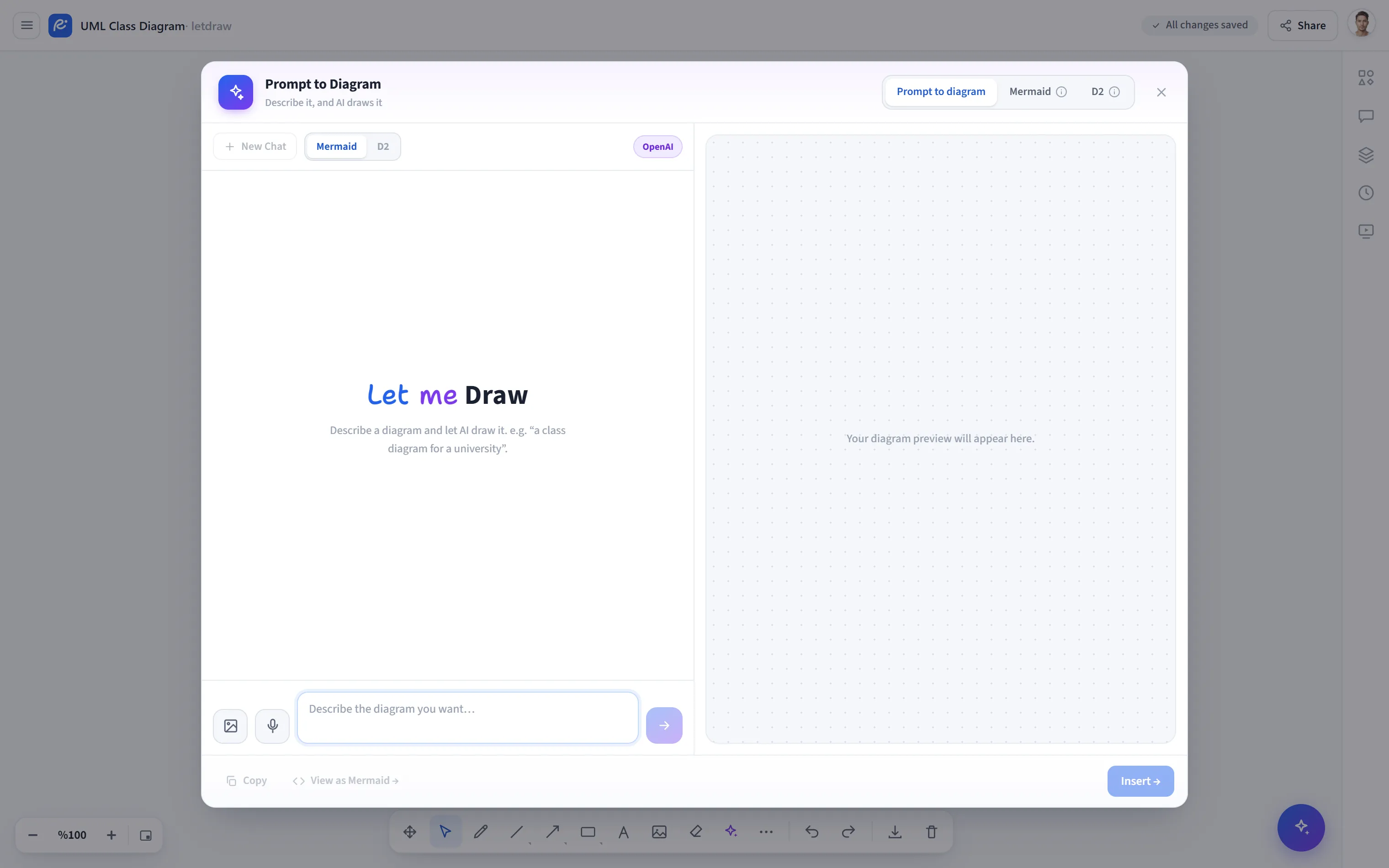
Prompt to Diagram turns a description you write into an editable diagram. It opens a two-panel workspace with a chat on the left and a live preview on the right. The AI generates structures such as flowcharts, sequence diagrams, class diagrams, and ER diagrams, and adds the result to the canvas as real LetDraw shapes. That means you can later edit every box, arrow, and label by hand.
How to open
Section titled “How to open”Click the AI and diagram tools button (the sparkle icon ✦) in the bottom toolbar and choose Prompt to Diagram from the menu that opens. The window opens with the natural-language (prompt) tab active.
How to use
Section titled “How to use”- In the box at the bottom, write what you want in your own words. Example:
“a 5-step flowchart for a university enrollment system”. Send with
Enter(Shift+Enterfor a new line). - A live preview appears in the right panel.
- You can write refinement messages in the same chat: “add labels to the arrows”, “remove the payment step”. The diagram updates with each message; from the buttons under each response you can copy, view the source, add it, or delete the message.
- Use Add to place the diagram on the canvas as editable shapes.
Input paths
Section titled “Input paths”- Text: type it directly.
- Voice input: dictate by speaking with the microphone button (if your browser supports it); what you say is converted to text.
- Image: add a picture with the image button in the input bar, or paste
from the clipboard (
Ctrl/⌘ + V). The AI reads the image and turns it into a diagram.
Output format and tabs
Section titled “Output format and tabs”- The Mermaid / D2 switch above the chat determines which language the AI generates in.
- With the tabs at the top of the window you can edit the Mermaid or D2 source directly (a line-numbered editor plus live preview). You can also reach the same generators from Generate from Mermaid / Generate from D2 in the Other tools menu.
- Supported types (Mermaid): flowchart, sequence, state, class, ER, requirement, mind map, block, pie, timeline. These are added as editable shapes; other types are added as an image (SVG).
Preview controls
Section titled “Preview controls”The preview has drawing style (clean/sketch), font (normal/handwriting), and zoom controls; the style and font apply both to the preview and to the added shapes. The active provider (LetDraw AI, OpenAI, Gemini, Claude) is shown above the chat.
Provider and quota
Section titled “Provider and quota”- Default: runs through the server we host, no extra key required.
- Your own key (BYOK): you can enter your own API key from AI Settings (OpenAI, Google Gemini, Claude, or OpenRouter). With your own key there is no free-prompt limit.
- Free plan: you are granted free prompts on the operator-provided server; the remaining allowance is shown in the input bar. When it runs out, you can upgrade to Pro or add your own key.
- The more concrete you are (number of steps, roles, relationships), the more accurate the result.
- When you select and open an existing diagram, prompts rework it rather than starting from scratch.
- To turn a diagram you generated back into source, use Other tools → Diagram to Code.