

Comment panel
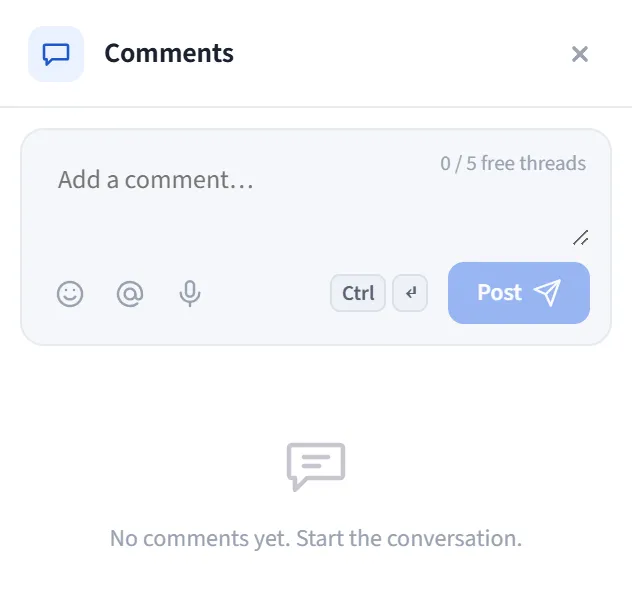
The Comment panel opens in the right-edge panel and shows all comment threads of the document in one place. You write new comments, filter and search threads, and manage each thread. It is bidirectionally synced with the comment pins on the canvas.
How to open
Section titled “How to open”Open the Comments panel from the panel rail on the right edge. The header shows the panel name and the total comment count.
States
Section titled “States”- If you are a guest: a “Sign in to comment” prompt appears.
- If there is no cloud document: an “Open a document to leave a comment” prompt appears.
- If you are signed in and on a saved document, the full panel appears.
Composer
Section titled “Composer”The box at the top of the panel starts a new top-level thread:
- Attached to shape badge: if you attached the comment to a shape (with the Comment button in the selection bar), it shows here; you can convert it to document level with Detach from shape.
- Quota (Free): your remaining quota is shown as “{used} / {limit} free threads”; when the limit is reached the Send button locks and an upgrade is offered.
- Tag with @, emoji, and voice input tools; publish with Send or
Ctrl/⌘ + Enter.
Filtering and search
Section titled “Filtering and search”When threads exist, a filter bar appears at the top:
- All / Open / Resolved tabs (each with its count).
- Search box: filters by text found in the thread itself or in its replies.
Thread list
Section titled “Thread list”- Each thread is shown as a top-level comment plus its replies; an inline reply box sits beneath it.
- On each comment: reply, react (emoji), resolve/reopen, pin, edit/delete (your own comments). Resolved threads collapse so that their heading stays visible.
- @mention: workspace members are suggested with autocomplete; the tagged person gets a notification.
Relationship with the canvas
Section titled “Relationship with the canvas”- Clicking a comment pin on the canvas scrolls to the matching thread in the panel and briefly highlights it.
- A reply or resolution you make from the panel is reflected in real time on the canvas pins and to other participants.
Typical flow
Section titled “Typical flow”- Open the panel; if you want to attach to a shape, first select the shape and use Comment in the selection bar.
- Type in the composer, tag a teammate with
@if needed, and Send. - Watch for replies; mark completed ones as Resolved and Pin the important ones.
- On a long list, navigate quickly with the Open/Resolved filter and search.