

Access
This page explains who can access workspaces, folders, and documents and how, who can create and edit them, and how management works. For the conceptual structure, see the Workspaces page first.
Access is determined by your role in the workspace. There are three roles:
| Role | Permissions |
|---|---|
| Owner | Creates and fully manages the workspace: invites and removes members, changes roles, renames or deletes the workspace. Has full access to all folders and documents. |
| Editor | Creates, edits, moves, and deletes folders and documents. Cannot manage members. |
| Viewer | Views folders and documents only (read-only). |
Who can create and edit?
Section titled “Who can create and edit?”| Item | Who can create | Who can edit |
|---|---|---|
| Workspace | Any signed-in user (the creator becomes the owner) | Owner |
| Folder | Owner and editor | Owner and editor |
| Document | Owner and editor | Owner and editor |
Members with the viewer role cannot create or edit; they can only view. On the Free plan there are no folders, so documents are created directly in the workspace.
How does access work?
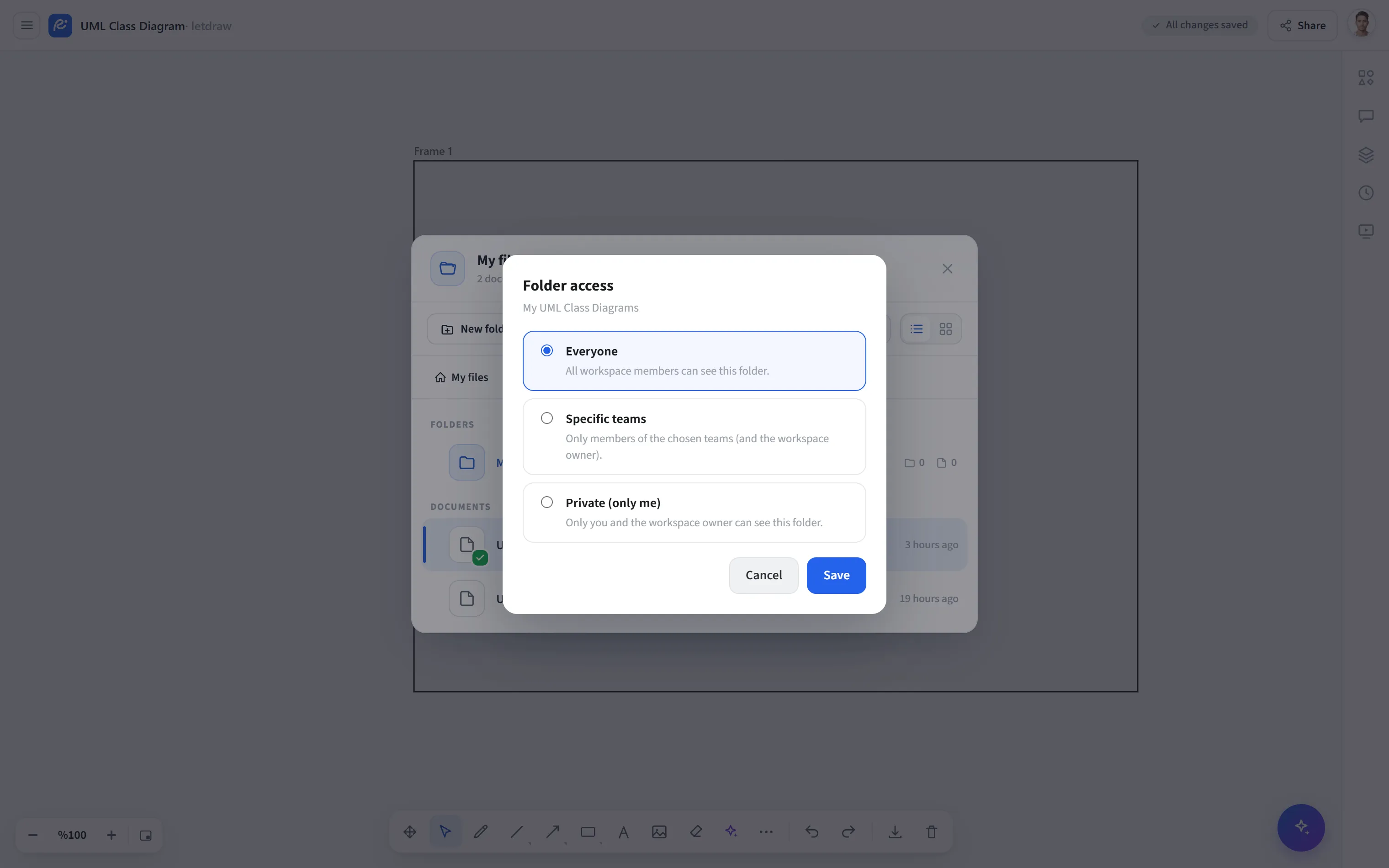
Section titled “How does access work?”- Workspace membership determines access. Access to a workspace’s folders and documents comes from membership and role in that workspace; folders and documents do not require separate membership.
- How are members added? The owner invites people by email, assigning a role (editor or viewer). Free workspaces are single-user; invitations are unlocked with Pro.
- Enterprise auto-join. On Enterprise, a verified email domain can be mapped to a workspace so users are added automatically (with SSO/SCIM for the user lifecycle). Auto-joined users become editors or viewers; never owners.
- Link sharing and real-time collaboration. You can share a document by link and collaborate in real time; for details, see Collaboration.
Plan differences
Section titled “Plan differences”| Feature | Free | Pro | Enterprise |
|---|---|---|---|
| Workspace members | Single-user (no invites) | Members by invite (editor/viewer) | Members + domain auto-join |
| Identity | SSO / SCIM | ||
| Comments per document | 5 | Unlimited | Unlimited |
| Activity | Own only, 7 days | Workspace-wide, 90 days | Workspace-wide |
For limits on the number of workspaces, folders, and documents, see Workspaces → Plan limits.