

Export
Export dialog
Section titled “Export dialog”To turn your drawing into a file, open Hamburger menu → File → Export. On the left of the dialog is a live preview that updates with the settings you choose, and on the right are the options.
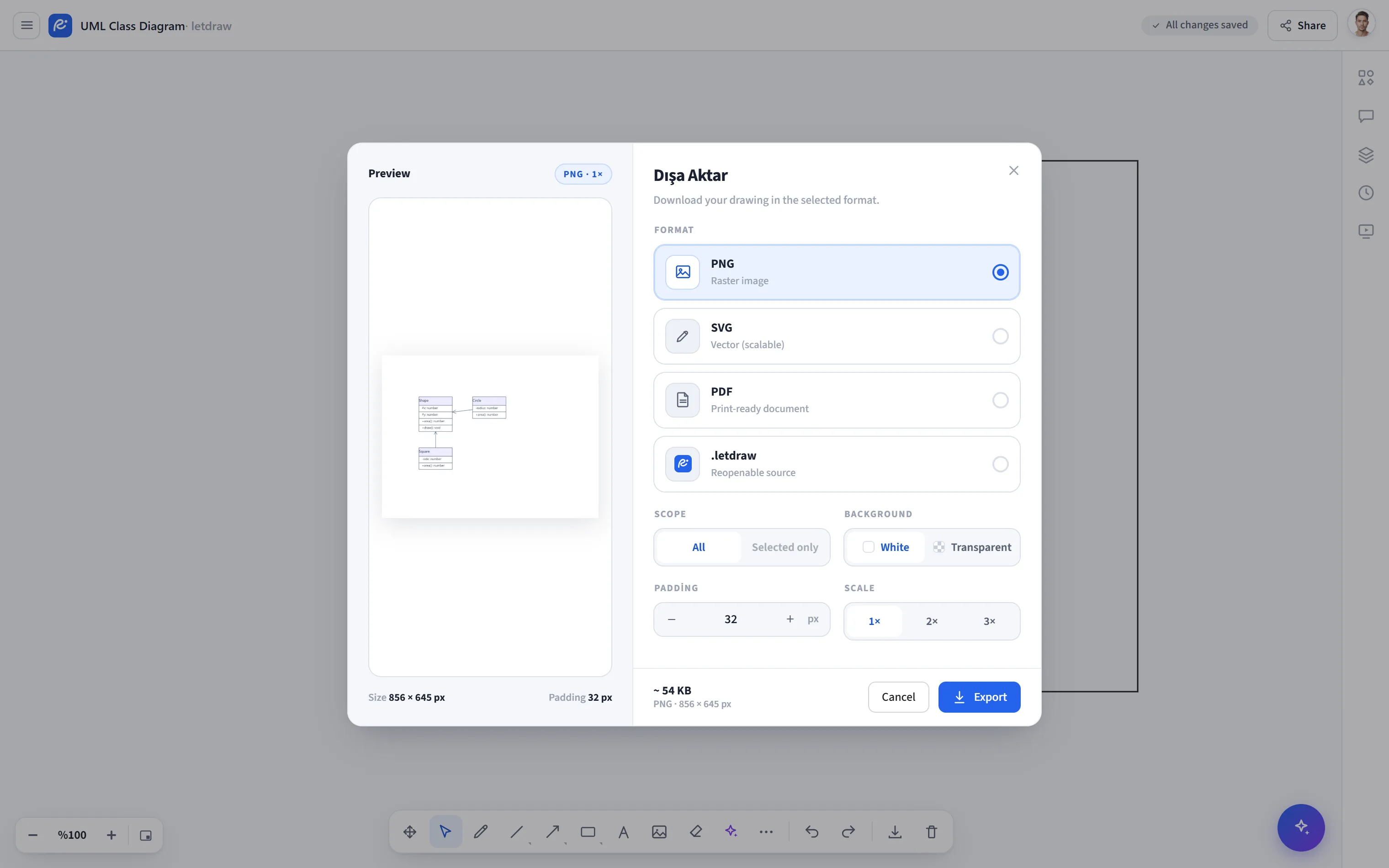
Format
Section titled “Format”Choose one of four output formats:
- PNG (raster image): a bitmap ready for a presentation, document, or chat.
- SVG (scalable vector): can be scaled up without loss of quality; ideal for print or editing in another tool.
- PDF (print-ready document): a single-page document. Produced with a lossless (FlateDecode) embedded image, without an external library.
.letdraw(reopenable source): not an image but the drawing itself; use it to reopen and edit in LetDraw or to back up.
- All: exports everything on the canvas.
- Selection only: exports only the currently selected elements (this option is disabled if nothing is selected).
Background (PNG / SVG only)
Section titled “Background (PNG / SVG only)”- White or Transparent. When Transparent is chosen, a checkerboard pattern
appears in the preview. PDF always produces white “paper”;
.letdrawhas no background option.
Padding
Section titled “Padding”The space left around the drawing (in pixels). It applies to all visual formats (PNG / SVG / PDF).
Scale (PNG / PDF only)
Section titled “Scale (PNG / PDF only)”1× / 2× / 3× pixel density. A higher scale gives a larger and sharper raster output. Since SVG is vector, it needs no scale.
Preview and download
Section titled “Preview and download”The preview in the left panel updates in real time with your selections; at the top there is a format badge (e.g. “PNG · 1×”), and below it the output’s size (pixels), padding, and estimated file size. When ready, press Export; the file downloads to your browser. You close it with Cancel.
Options that don’t apply to a format appear dimmed (disabled) (for example, background
and scale for .letdraw).