

Presentation panel
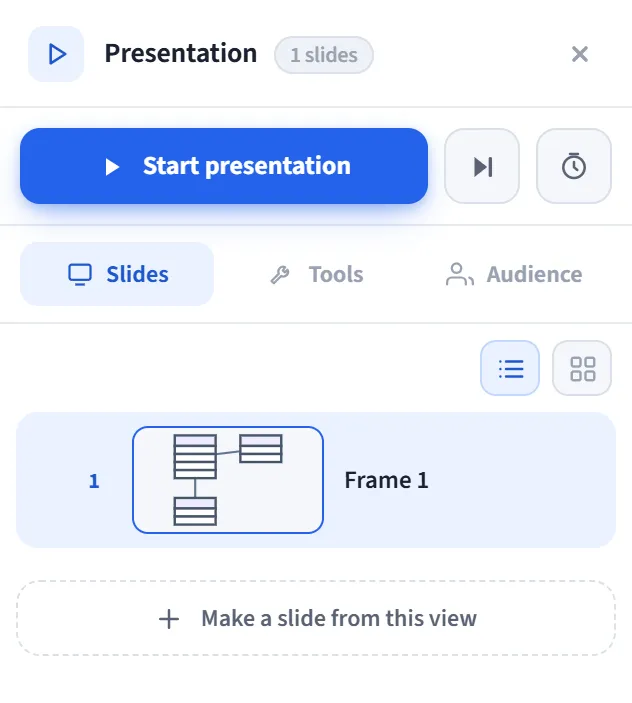
The Presentation panel is the slide manager that opens in the right-edge panel. The frames on the canvas are your slides; this panel lists, orders, and names them, and you start the presentation from here. You prepare the whole deck here before going full screen.
How to open
Section titled “How to open”Open the Presentation panel from the panel rail on the right edge. The header shows the panel name and the total slide count.
Start row
Section titled “Start row”There are three buttons at the top of the panel (all Pro):
- Start presentation: starts the presentation from the first slide.
- Start from this slide: starts from the selected slide.
- Rehearse: starts in rehearsal mode; it measures how long you spend on each slide and saves this on exit (a summary appears in the Tools tab below).
Slides tab
Section titled “Slides tab”You manage the deck from here:
- Switch between List / Overview views.
- Each slide has a number, a thumbnail preview, and a name. Clicking a slide selects it and zooms to it on the canvas.
- Reorder: move slides with drag and drop (or
Alt + ↑/↓). - Double-click a slide name to rename it.
- Actions that appear when you hover over a slide:
- Speaker note: add/edit a note for that slide.
- Hide / show in presentation: skip the slide in the presentation (it looks dimmed in the list).
- Rename, Duplicate, Delete.
- Small badges: a note-present marker, a hidden badge, and (if you rehearsed) the rehearsal time spent on that slide.
- Make slide from this view: captures the current view into a new frame. In the dialog that opens, you choose the slide size (16:9 / 4:3 / custom) and can give it a name and a note.
Tools tab
Section titled “Tools tab”The settings here are persistent and apply to the next presentation:
- Playback: Auto-advance, advance interval (slides/second), Target duration (pacing warning), Loop / kiosk, Transition (fade). If you rehearsed, a total duration summary appears here; use Set as target to make this duration the pacing target, or clear the rehearsal.
- Appearance: Full bleed (hide frame edges/labels) and Focus mask (darken around the active slide).
- Presenter indicators: turn on the Timer, Clock, Next preview, and Filmstrip indicators in advance.
- During the presentation: a shortcut reference for the live tools (L, S, A, B, C, J).
Audience tab
Section titled “Audience tab”You get the audience-interaction tools ready in advance, so they go live the moment the presentation opens:
- Join by QR: the audience scans a QR code and follows the slide.
- Reactions: live emoji from the audience.
- Q&A: collect and answer questions.
- Live poll: with Prepare / Edit, enter the question and 2-6 options in advance; you start it with a single key onstage without typing. A prepared poll is shown with a checkmark.
Export (at the bottom)
Section titled “Export (at the bottom)”The Export menu at the bottom of the panel turns the deck into a file (hidden slides are skipped, frame edges are cleaned up):
- PDF: each slide is a page.
- PNG (ZIP): each slide a separate PNG, inside a single ZIP.
- PPTX: each slide a full-bleed PowerPoint slide.
If you enable the note toggle next to it, the speaker notes are also added to the exported file. All exports are self-contained (no external library/service).
Typical flow
Section titled “Typical flow”- Draw the slides with the Frame tool (or use Make slide from this view).
- In the Slides tab, order them, name them, add notes, and hide the ones you don’t need.
- Set up presenter/audience features from the Tools and Audience tabs.
- Go full screen with Start presentation; or export the deck as PDF/PNG/PPTX.