

Object
The hamburger menu at the top left → Object offers editing operations on
the selected elements. A row greys out when the selection isn’t enough for it (for
example Align with a single element, since there is no second element to align
to). Every action here is undoable (Ctrl+Z) and is disabled while View Mode
is on. An operation ignores elements a collaborator has deleted; it acts only on
the visible selected elements.
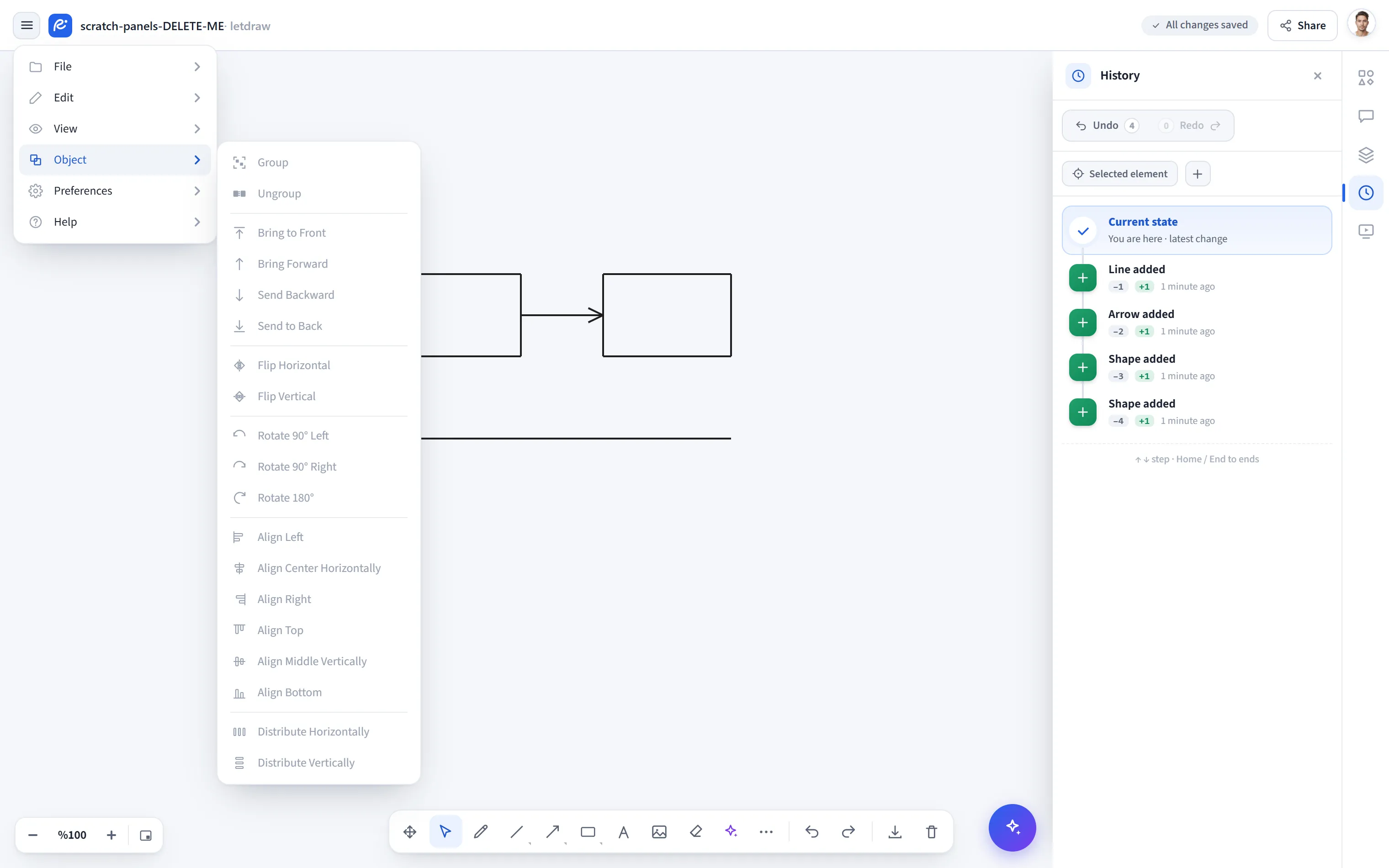
Group / Ungroup
Section titled “Group / Ungroup”- Group: makes two or more elements a single unit (selected and moved together). It needs at least two elements. If you group a mixed selection that already includes grouped elements, the new group becomes the outermost layer, so Ungroup right afterwards works cleanly.
- Ungroup: acts only when the whole selection shares the same outermost group, and peels off that top layer. Nested groups are preserved: only the topmost layer is removed (the mirror of the layer Group adds).
Layer order
Section titled “Layer order”Changes the drawing order (front-to-back) of the selection:
- Bring to Front: moves the selection in front of everything else.
- Bring Forward: moves it one step forward.
- Send Backward: moves it one step back.
- Send to Back: moves the selection behind everything else.
Mirrors across the selection’s collective centre. Geometry-bearing elements like lines, arrows and freehand strokes have their inner points transformed too, so the result is a true visual reflection, not just a bounding-box flip. Flipping twice along the same axis returns the element to where it started.
- Flip Horizontal: mirrors left to right.
- Flip Vertical: mirrors top to bottom.
Rotate
Section titled “Rotate”Rotates the selection about its collective centre. Points of lines, arrows and freehand strokes are rotated one by one; for fixed shapes (rectangle, ellipse, etc.) ±90° swaps width and height. Applying 90° four times returns the element to its starting state.
- Rotate 90° Left / Rotate 90° Right
- Rotate 180°
Aligns elements in a multi-selection against the selection’s collective bounding box. It needs at least two elements. Control points of arrows and lines move along too, so a curve slides without distorting.
- Align Left, Align Center Horizontally, Align Right
- Align Top, Align Middle Vertically, Align Bottom
Distribute
Section titled “Distribute”Spreads elements so the gaps between consecutive bounding boxes are equal. It needs at least three elements; the leftmost (or topmost) and rightmost (or bottommost) stay put, and the ones in between slide to even out the spacing.
- Distribute Horizontally / Distribute Vertically