

Workspaces
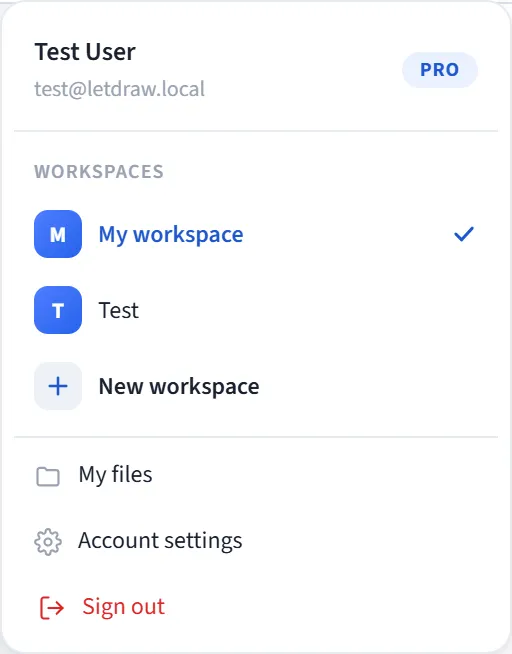
A workspace is a separate area that holds its own folders, documents and members. When you click the avatar button at the top right, the Account menu opens, and the workspace section is at the top of it; from here you switch between workspaces and create new ones.
How many are listed
Section titled “How many are listed”- The menu shows your most recently used workspaces row by row (at most 5). A check mark appears next to the active one.
- If you have more workspaces, a “See all (N more)” item appears at the bottom; clicking it opens a window listing all your workspaces.
What you can do
Section titled “What you can do”- Switch: clicking a workspace switches your canvas and files to that workspace.
- New workspace: this item at the bottom of the section creates a new workspace (asks for a name).
Plan limits
Section titled “Plan limits”- Free: 1 workspace. Trying to create a second one offers an upgrade.
- Pro: at most 10 workspaces.
- Enterprise / self-hosted: unlimited.
How the workspace, folder and document structure is set up is explained in detail on Workspaces, and how access works on Access. This page covers the switch/create section of the avatar menu.