

Diagram to Code
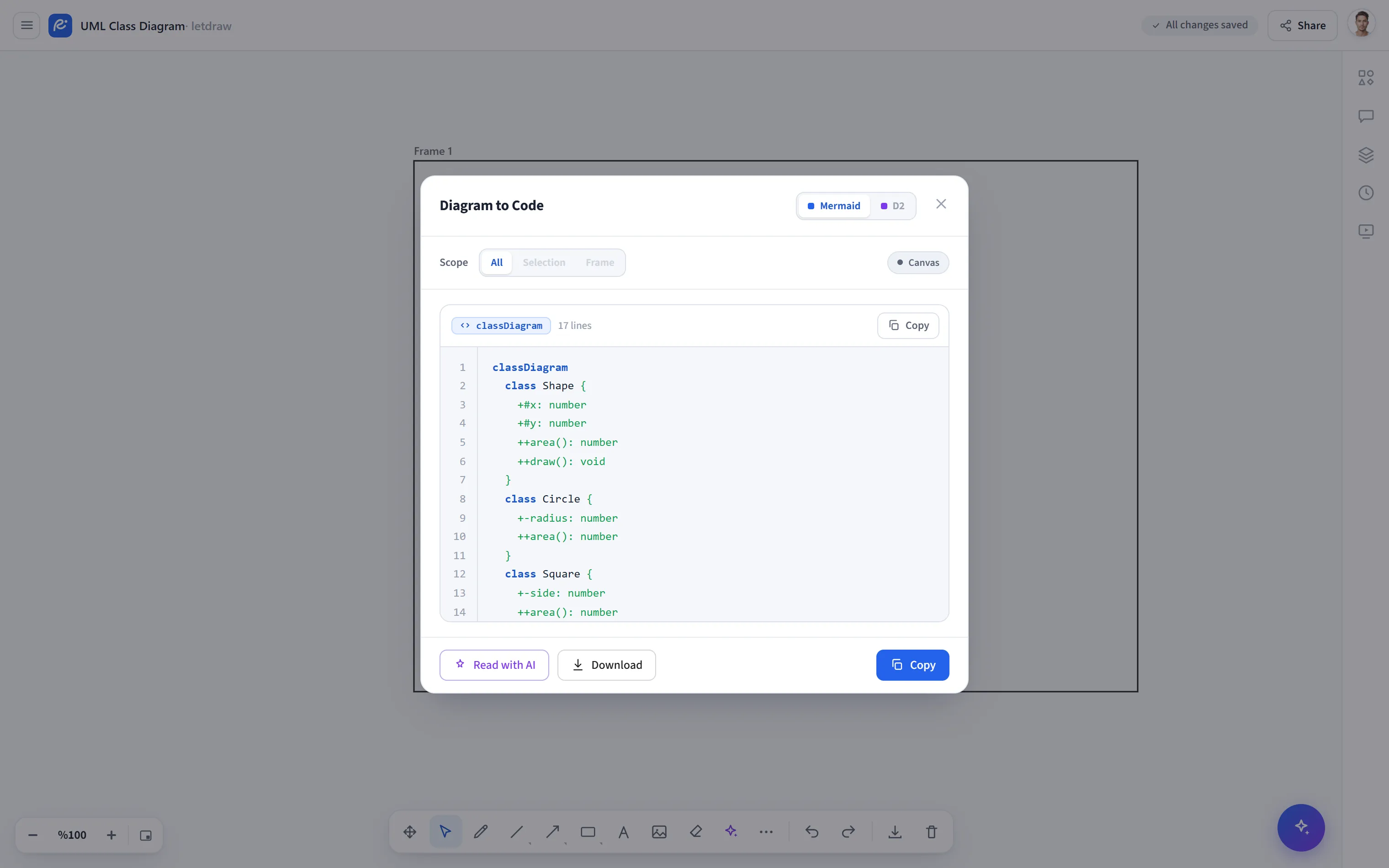
Diagram to Code turns the diagram you drew back into Mermaid or D2 source code. It is useful for putting a diagram under version control, embedding it in a README, or moving it to another tool; it is the inverse of From Mermaid / From D2. The default conversion requires no AI (local, rule-based).
How to open it
Section titled “How to open it”More tools (⋯) → Diagram to Code in the bottom toolbar. If there is no shape on the canvas, this item appears disabled.
How to use it
Section titled “How to use it”- Open More tools → Diagram to Code.
- Choose the Mermaid or D2 output language at the top.
- Use Scope to determine what will be converted (the narrowest valid scope is
the default):
- All: the whole canvas.
- Selection: only the shapes you selected (disabled if not enough diagram nodes are selected).
- Frame: the diagram inside a frame (disabled if no frame is selected).
- The code appears in a syntax-highlighted, line-numbered view (with a
language badge and line count). Use Copy to grab it or Download to save
a
.mmd/.d2file.
Structural vs AI interpretation
Section titled “Structural vs AI interpretation”- Structural (default): LetDraw parses the shapes and the arrows connecting them and extracts a node + edge graph; it produces readable identifiers from the box text. Cleanly connected diagrams (arrows whose ends are bound to shapes) give the best results. A badge indicates that the source is structural.
- Interpret with AI (optional): for hand-drawn diagrams or ones that structural extraction cannot fully capture, there is an AI option that reads the diagram as an image and turns it into code. This path uses a provider/quota; if you like, you can return to the structural output with one click.
- If you want visual (PNG/SVG/PDF) output, use Export in the Hamburger menu; this tool produces only source code.