

Import/Export
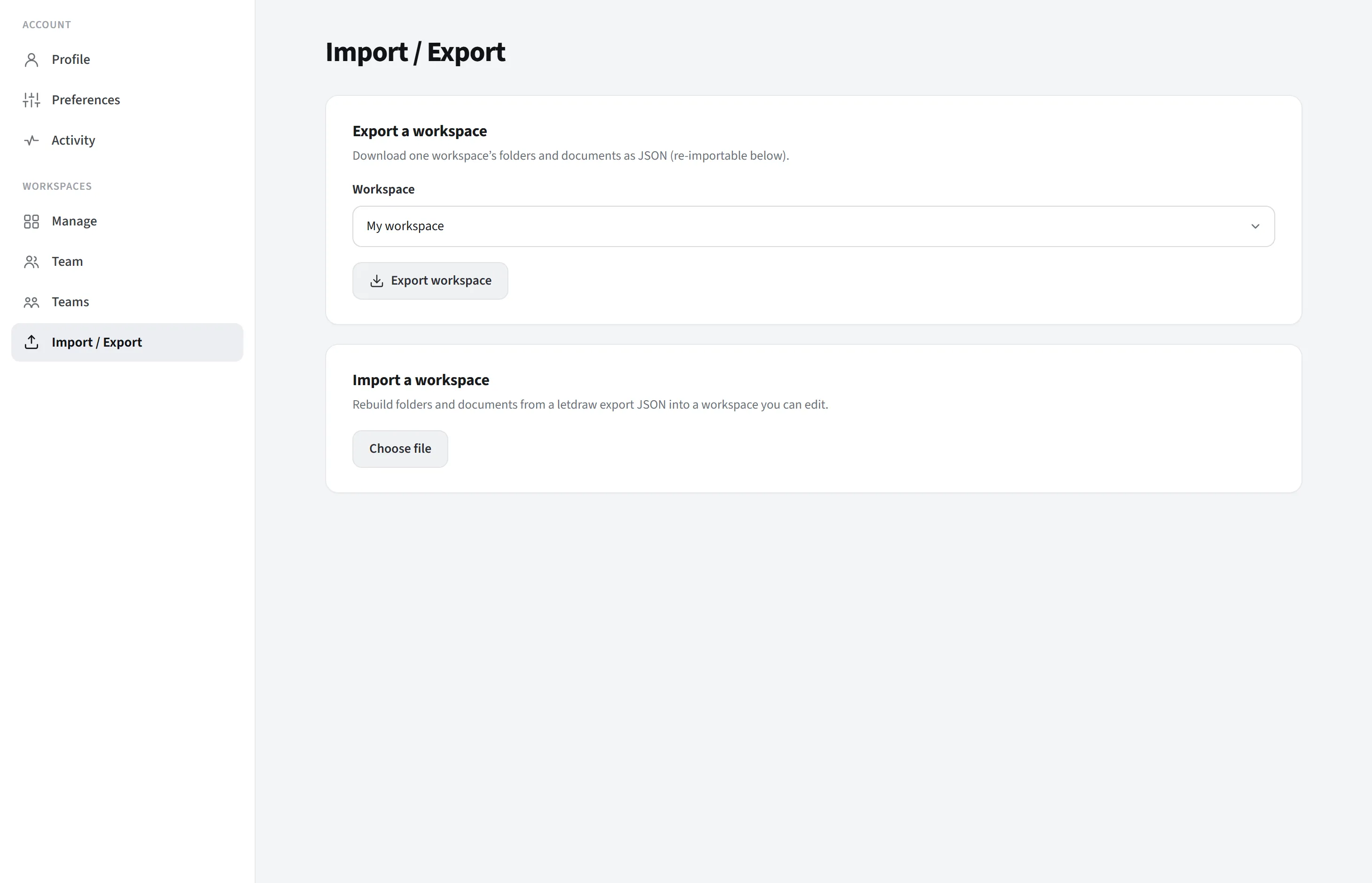
Import/Export is in the Workspaces group of the settings page and consists of two cards: export a workspace and import a workspace. It lets you turn a workspace’s contents into a portable JSON file and restore them from that file.
What it covers, what it does not
Section titled “What it covers, what it does not”These tools are workspace-scoped. Two neighboring features you should not confuse with them:
- Saving/opening a single document to a file (
.letdraw) is a different thing; for that use Main menu → File. - If you want to download your entire account (all workspaces + comments) in one go, that is a different export and is in the “Export your data” card on the Profile page.
Export (A workspace)
Section titled “Export (A workspace)”Downloads the contents of the single workspace you select as a file named
letdraw-workspace-<name>.json.
What gets exported:
- The workspace’s folder structure (including nested folders).
- All documents in the folders, each with its full scene content (the actual shapes/drawings on the canvas). That is, not just the names, but the documents themselves.
What does not get exported: members, teams, folder access settings, comments and version history. This card moves content; collaboration/permission data is not in the file.
How: from the workspace dropdown on the card, choose which workspace to export, press Export workspace; the file downloads to your browser.
What it is for: taking a backup, moving content to another account or self-hosted installation, archiving, or duplicating a workspace’s contents.
Import (A workspace)
Section titled “Import (A workspace)”Takes a previously exported LetDraw workspace JSON and rebuilds the folders and documents inside a workspace you choose.
Steps:
- Upload a
letdraw-workspace-*.jsonfile with Choose file. If the file is invalid, a “This file is not a valid LetDraw export” warning appears and nothing happens. - If it is valid, a preview appears: “X folders and Y documents ready to import”.
- Choose the target workspace from the Import into dropdown. The target must be a workspace you can edit (where you are owner or editor); importing requires write permission.
- Press Import. A progress bar is shown; when it finishes, a “X folders and Y documents imported” notification appears.
Behavior: Import adds the folders (starting from the top folder, with new IDs) and documents to the target workspace; it does not overwrite existing content. If you import the same file twice, two copies are created. For a clean copy, it is best to import into an empty, new workspace.
Typical flow
Section titled “Typical flow”- Migration/backup: export the source workspace → create an empty workspace in the target account/installation → import that file there.
- Duplication: export a workspace → import into a new workspace in the same account.
The whole operation runs through your account’s RLS-protected backend APIs; no data is sent to a third party.