

Frame
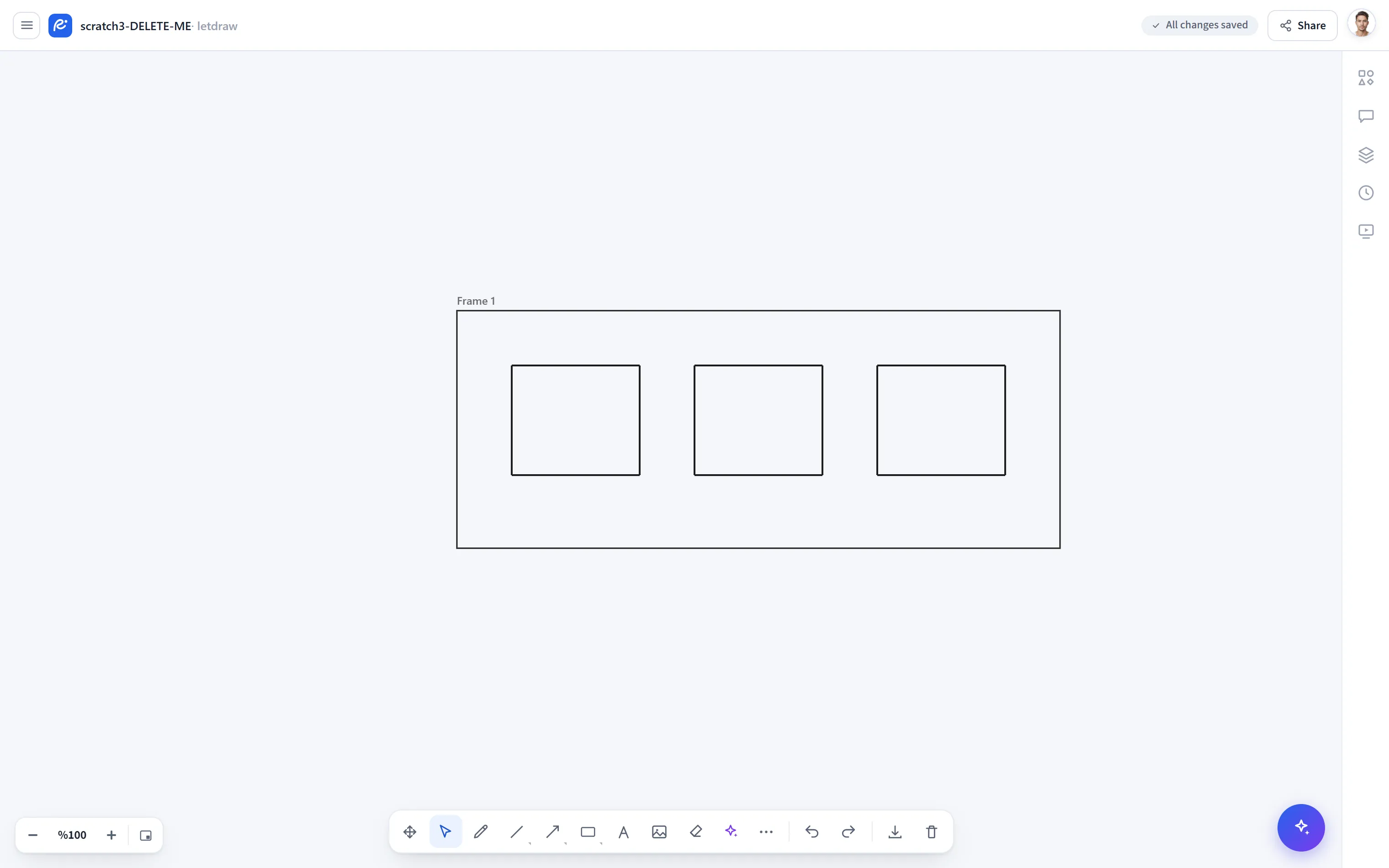
Frame encloses a section of the canvas in a named box. Shapes that go inside it are bound to the frame; when you move the frame, they all come along. It is ideal for dividing a large canvas into sections, exporting an area as a single piece, and giving a presentation.
How to open it
Section titled “How to open it”More tools (⋯) → Frame in the bottom toolbar; or F from the keyboard.
Shortcut
Section titled “Shortcut”| Key | Action |
|---|---|
F | Select the Frame tool |
How to use it
Section titled “How to use it”- Choose More tools → Frame (or
F). - Drag a rectangle onto the canvas; shapes that fall inside are bound to the frame.
- When you move the frame with the Select tool, everything inside it moves along.
- You can rename the frame by double-clicking its name.
What it is good for
Section titled “What it is good for”- Layout: divides a complex canvas into sections.
- Export: you can export a frame as a single piece.
- Presentation: frames on the canvas become slides in presentation mode; drawing a frame is all you need to start a presentation.
- The frame’s selection bar has a line (border) color; in addition, the opacity, layer order, and duplicate/delete controls are available from the Select tool.