

Edit as Code
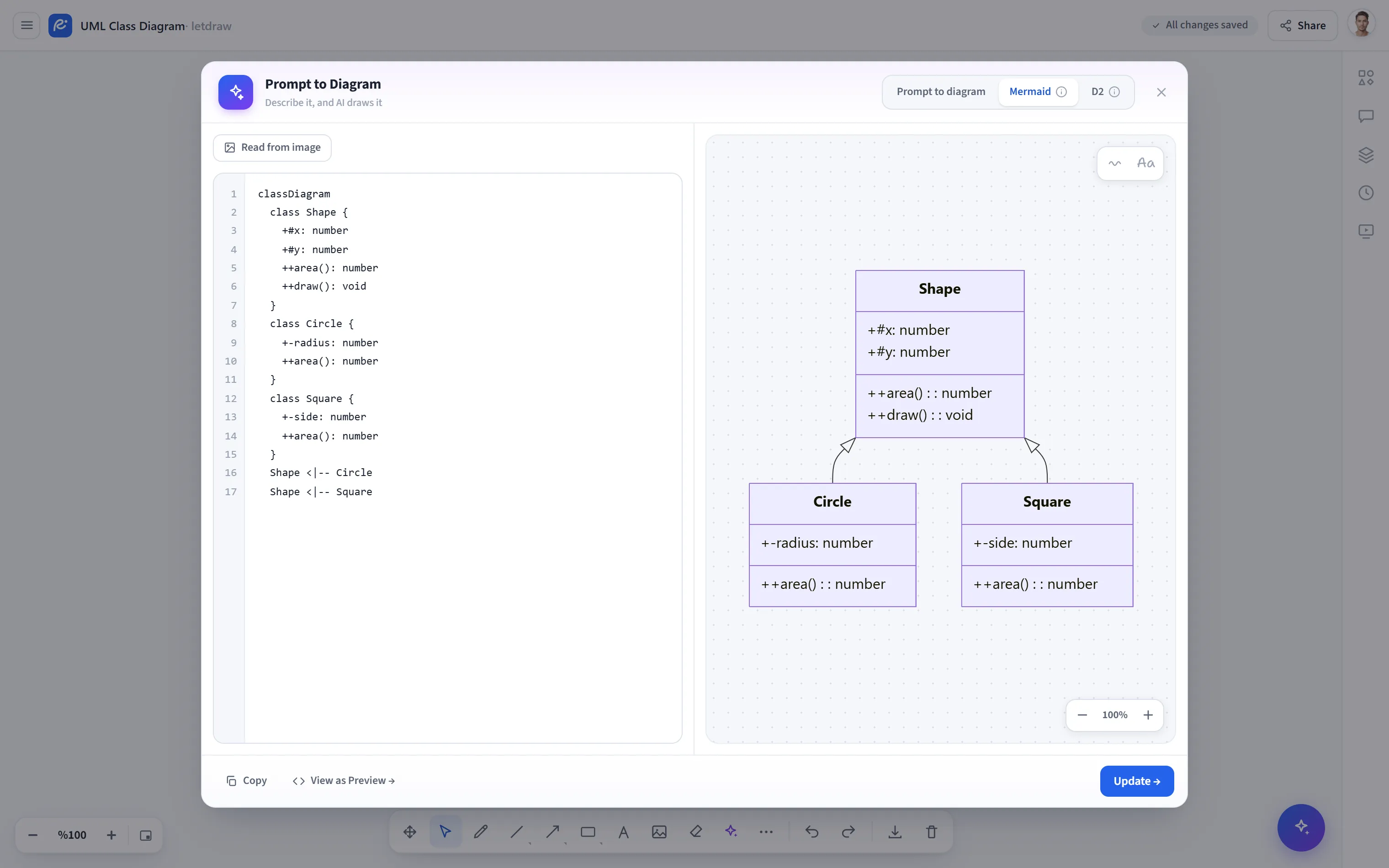
Edit as Code turns an existing diagram into Mermaid/D2 code and opens it in an editor with a live preview. The code comes pre-filled; when you make changes and apply them, the diagram is updated in place (a single undo step). This lets you do the “draw → convert to code → edit → apply back” round trip in a single step.
How to open it
Section titled “How to open it”More tools (⋯) → Edit as Code in the bottom toolbar. If there is no shape on the canvas, this item appears disabled.
How to use it
Section titled “How to use it”- If you like, first select the shapes you want to edit. If the selection contains diagram nodes, only that part is used; if not, the whole canvas is used.
- Open More tools → Edit as Code. The code opens pre-filled in a line-numbered editor; a live preview appears on the right.
- Change the code (add a box, fix a label, change an arrow direction).
- Press Update; the changes are applied over the same shapes.
Read from image
Section titled “Read from image”If the selection is a part that structural extraction cannot fully represent (e.g. a few classes pulled from a class diagram), you can regenerate the source from an AI image reading with the Read from image button above the editor. This path uses a provider/quota.
- The source language follows a previous import: if the part came from D2 it opens as D2, otherwise as Mermaid.
- If you want to produce only code (without applying in place), use Diagram to Code.