

Comment
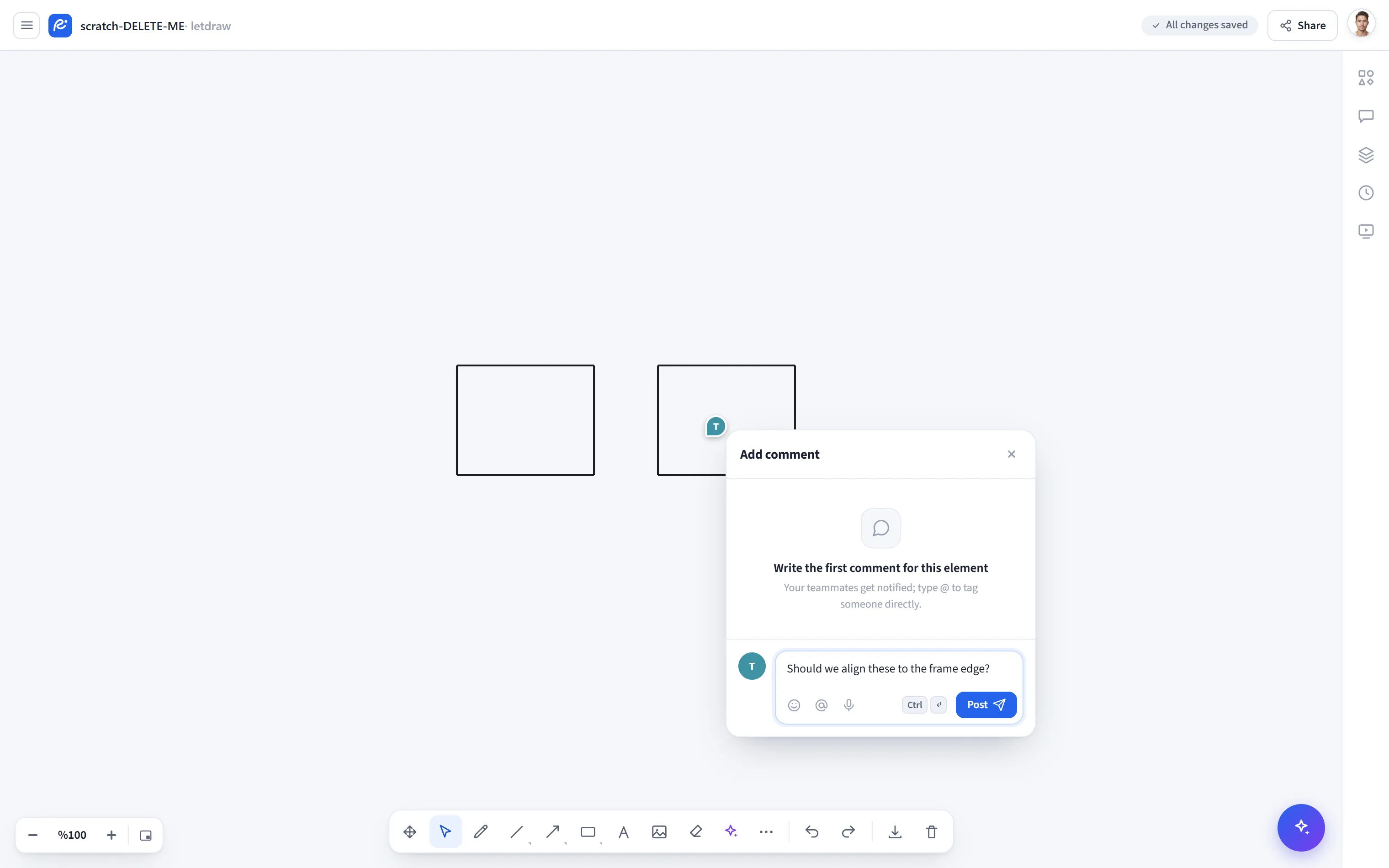
Comment lets you leave a comment pinned to a specific point on the canvas. It is used to give feedback, mark a shape, or discuss with your team on a shared document.
How to open it
Section titled “How to open it”More tools (⋯) → Comment in the bottom toolbar.
How to use it
Section titled “How to use it”- Choose More tools → Comment. You switch to comment-placement mode.
- Click on the canvas where you want to attach the comment. A comment pin is placed at that point.
- Write the comment. The comment is pinned to that point; when you pan and zoom the canvas, it stays in the corresponding place.
If you want to attach the comment to a specific shape, you can select the shape and use the Comment button in the selection bar; in that case the comment is bound to that element.
What you can do with comments
Section titled “What you can do with comments”- Reply (thread): create a conversation thread by replying to a comment.
- Emoji reaction: react to comments with emoji.
- Resolved: mark a completed comment as resolved.
- Pin / Edit / Delete: pin the comment, edit its text, or remove it.
- Canvas pin and panel: comments appear as pins on the canvas; clicking a pin opens the corresponding thread. You can see all of them in the Comments panel on the right. Use “Copy link” to share a direct link to a comment.
- Real-time: on a shared document, comments are reflected to team members instantly (across devices/tabs).
Requirements and limits
Section titled “Requirements and limits”- To leave a comment, you must be signed in and working on a cloud (saved) document. When these two conditions are not met (guest use or a local draft), the menu item appears disabled.
- On the Free plan, 5 main threads can be opened per document; replies do not count toward this limit. Pro is required for more.